How to Add a ShopMy Link to Your TikTok Bio
Connect ShopMy to TikTok on the web, authorize permissions, then place your link in your bio.

Understanding ShopMy and how TikTok integration works
If you want easier product promotion from TikTok, you can add a ShopMy link to your TikTok bio. ShopMy lets you create a shoppable section that TikTok viewers can browse without hunting for items. When it is set up well, this can turn profile visits into product page views.
ShopMy is the hub for your shopable content, while TikTok is where the discovery happens. Your job is to connect the right TikTok account to ShopMy, then place the resulting link where people will actually tap it. That usually means your TikTok bio, not a buried profile post.
One key detail matters for most creators: you typically connect accounts from a web browser, not inside the TikTok app. If you try to do it only from mobile apps, you may miss the Connected Accounts area in ShopMy. So plan to use a computer or a mobile browser.
- ShopMy creates your shoppable section
- TikTok brings traffic and social proof
- Your bio link becomes the bridge

Steps to connect ShopMy to TikTok (web-based)
To connect ShopMy to TikTok bio, start in ShopMy using a web browser. This is the part many people skip, then wonder why the integration does not show up. Use the browser on your laptop, or open the ShopMy dashboard in a mobile browser.
Next, connect the TikTok account you actually use for posting. You want the same TikTok profile that you will share in your bio. If you connected a different account, your link may look correct but point to the wrong shop flow.
Then, you will reach the place where permissions are requested. You need to authorize the necessary permissions for full functionality, not just “allow” blindly. If something looks optional, read it and confirm you are granting what ShopMy needs to display shoppable content in the TikTok experience.
- Open ShopMy in a web browser and sign in
- Go to Account Settings
- Find the Connected Accounts option
- Select TikTok and follow the sign-in prompts
- Authorize the requested permissions
If you see a permissions screen, do not close it early. In many setups, the integration only becomes active after that approval step completes. After authorization, wait a minute and refresh the ShopMy page.
Finally, confirm the connection status inside ShopMy. Look for a “connected” state, or an indicator that the TikTok account is linked. If you do not see it, repeat the connection flow.
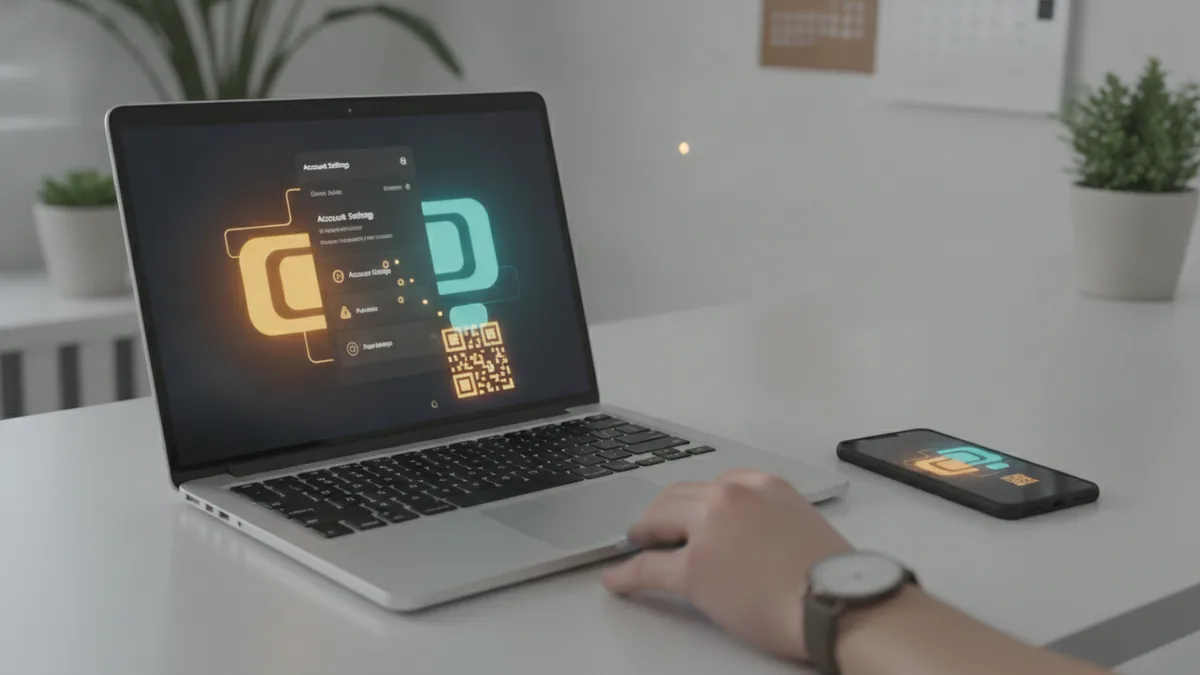
Set up your ShopMy profile before you publish the link
Before you add the ShopMy link to TikTok bio, make sure your ShopMy profile is ready for visitors. A connected account is not enough if your shoppable section is incomplete. View your ShopMy page as if you were a buyer, not as if you were configuring settings.
Check your product lineup, pricing, and availability. People arrive from TikTok expecting quick answers. If items look outdated or missing, the bio link will drive traffic that does not convert.
Also verify how your shopable content is presented. A clear layout helps users understand what to tap first. If you have a featured set, keep it aligned with the content you post on TikTok.
| Profile area | What to verify | Why it matters on TikTok |
|---|---|---|
| Shoppable section | Items display correctly | Bio taps should land on a ready shop |
| Product details | Names, images, and links | Viewers need fast context |
| Brand look | Consistent style and order | It builds trust in seconds |
When your ShopMy profile looks good, you can move to the bio step. At that point, you are not just adding a link. You are connecting your TikTok audience to a shopping path that actually works.
Best practices for where and how to place your ShopMy link
To add shopmy link to tiktok bio effectively, placement and wording are just as important as the connection. TikTok bios are short, so you need to make the link feel intentional. Many creators get better results by pairing the link with a single clear reason to click.
Start by placing your link in the link field your TikTok profile uses for outside destinations. Then, customize the bio text with TikTok bio customization in mind. Keep it simple, like pointing to “Shop the collection” or “New drops here.”
If you use link-in-bio tools elsewhere, do not duplicate confusion. Pick one primary destination and keep the flow clean. This is especially important for social media shopping, where users want one obvious next step.
- Put the link in your profile link field
- Use a short line that tells people what they will see
- Match the bio message to your latest posting theme
- Update the shop section when promos change
Also think about timing. If you just posted a product-focused video, your bio should reflect that same product or collection. That improves the chance the viewer taps because the offer feels consistent.
Finally, test on your own device. Open your profile on mobile, tap the link, and confirm the experience is smooth. Check that images load and that the first screen shows the shopable content clearly.
Benefits of using ShopMy on TikTok for product promotion
ShopMy on TikTok supports social media shopping and helps you present a focused catalog. Instead of scattering product info across comments and pinned posts, you can point people to one shoppable section. That reduces friction and can increase engagement from profile visits.
It also helps with digital shop integrations by making the shopping path predictable. When viewers know that the bio link always leads to the latest shopable content, they return more often. Over time, that consistency can build a habit: watch on TikTok, then shop from the same place.
In practical terms, the benefits usually show up as more meaningful clicks. A “link for everything” can dilute attention, while a ShopMy destination can keep the focus on your active products. For many creators, this also makes promotion feel more professional and less like a manual process.
Once your setup is stable, you can use it with your broader strategy. For example, when you run a series of videos around one collection, your bio link becomes the always-on call to action. That is how TikTok traffic turns into real product interest.
- More clarity for shoppers from your profile
- Better alignment between content and what users can buy
- Fewer steps from “watch” to “shop”
- Improved consistency for recurring promos
Step-by-step
- 01 Open ShopMy in a web browser
Sign in to ShopMy using a browser on your computer or mobile. This helps you access the account settings screens needed for TikTok linking.
- 02 Connect TikTok in Account Settings
Go to Account Settings inside ShopMy. Find Connected Accounts and choose TikTok to start the connection flow.
- 03 Authorize permissions
When prompted, authorize the permissions needed for full integration. Do not skip this step, and wait for the confirmation that the connection is complete.
- 04 Verify your ShopMy profile is ready
Check that your shoppable section displays the right products and details. Preview the buyer experience so the first screen looks strong.
- 05 Add the ShopMy link to your TikTok bio
Paste the ShopMy destination link into your TikTok profile link field. Save changes, then test by tapping your link from the TikTok app.
Frequently asked questions
- How do I add a ShopMy link to my TikTok bio?
- Connect your TikTok account to ShopMy first. Then copy the ShopMy destination link and paste it into the link field in your TikTok profile. Save your changes and test the tap on mobile.
- Can I connect ShopMy to TikTok from the TikTok app only?
- Usually no. You need to connect your TikTok account via a web browser in ShopMy. This is where the Connected Accounts option is typically managed.
- Where do I find Connected Accounts in ShopMy?
- Open ShopMy Account Settings. Look for the Connected Accounts area, then choose TikTok to start the connection flow.
- Why do I need to authorize permissions during the connection?
- Permissions enable the integration to work end-to-end. Without authorization, the shoppable experience may not show up correctly for viewers.
- What should I write next to my ShopMy link in the TikTok bio?
- Use a short line that matches your latest videos. For example, point to “Shop the collection” or “New drops here,” then keep the rest of your bio focused.
- How can I make the ShopMy link drive more clicks?
- Test your destination on your phone and keep the ShopMy section current. Align your bio message with the products featured in your recent TikToks.
Related reading

How Do You Make Instagram Bio Spaces?
Use line breaks and blank characters to make your Instagram bio easier to scan.

How Do You Change Your Bio Font on Instagram?
Use a Unicode font generator to style your Instagram bio in a few simple steps.

How to Add a Spotify Playlist Link to Your Instagram Bio
Add your playlist, test the link, and help more people find your music.