How to Change Font on Your Instagram Bio (Fonts That Work)
Change your Instagram bio font with Unicode text styles. Copy-paste steps inside.

Instagram bio fonts: what you can change (and what you can’t)
To learn how to change font on instagram bio, start with the key limit. Instagram does not let you install new font files or pick a system font.
Instead, the “fonts” you see are text styles built with Unicode characters. These characters look like different lettering, but they are still plain text.
That is why copy and paste fonts is the real method. You create styled text with a font generator, then paste it into your bio.
It also explains why styles can act differently across devices. Some Unicode characters fit tightly on one screen, but wrap on another.
- Yes: Unicode text styles for the Instagram bio
- Yes: bold, cursive, outline, and symbolic accents
- No: installing a true custom font file
- Watch: spacing and line breaks after you paste

Why change your Instagram bio font?
Your Instagram bio is scanned fast. A small font style shift can help your first line stand out in the profile view.
Many creators use how to change font in instagram bio as part of visual branding. For example, a bold style can emphasize a core message.
If your profile feels warm or personal, cursive styles can match that tone. The goal is still readability first.
Think of it as social media typography. You want clear hierarchy so people spot what you do within seconds.
- Highlight one line: style your main message or tag phrase
- Keep support text simple: use normal characters for details
- Avoid long styled paragraphs: they can look messy
- Test on your own profile: confirm spacing after posting
Steps to change font on Instagram bio (copy and paste)
Here is the practical answer to how to change the font on instagram bio. You do it by generating Unicode styled text, copying it, and pasting it into your bio field.
This works the same on iPhone and Android. So when you search how to change font instagram bio android, expect the same copy and paste flow.
Use these steps to create a new bio or swap styles during testing. Try one change at a time so you can tell what improved readability.
- Write your bio content first: keep it short and in normal letters.
- Open a font generator: paste your bio text into the tool.
- Pick a style: choose from cursive, bold, outline, or symbolic variants.
- Copy one best-looking result: choose the version that keeps spacing clean.
- Open Instagram profile settings: tap Edit profile.
- Paste into the bio: replace the old text with the styled version.
- Save and check: view your profile on the same phone.
When you paste, check two things. First, make sure line breaks still look intentional. Second, confirm that the styled characters did not collapse or shift weirdly.
If you see problems, generate another variant and paste again. Unicode styles can render with different widths across screens.
For searches like how to add font to instagram bio or how to put a font on your instagram bio, the key idea stays the same. Instagram is not adding a new font file. It is showing the styled text you paste.
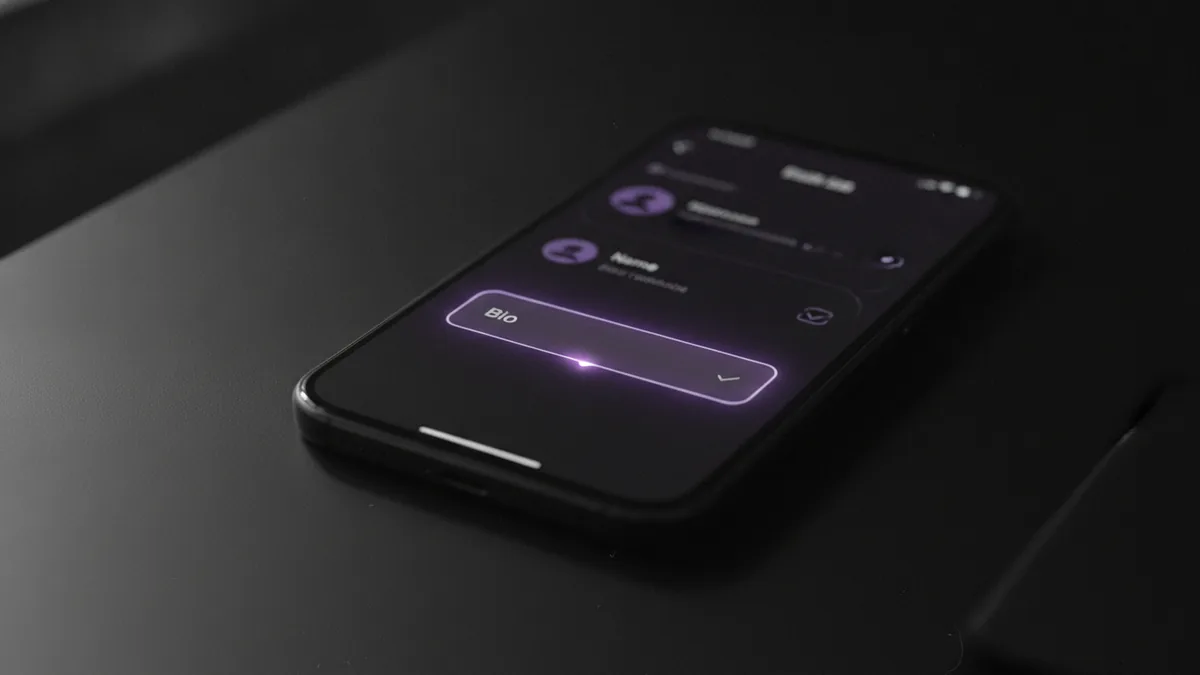
Choosing the right font style for your bio
Not every Unicode style stays readable on Instagram. A style that looks good in a generator preview might be harder to scan in your profile view.
When you ask how change font in instagram bio, decide on one purpose. Do you want emphasis, personality, or a clean modern look?
Then test a style that supports that purpose without harming clarity. If the letters become too thin or too decorative, people may miss your message.
- Cursive: works well for short tags or a signature vibe
- Bold: good for one-line hooks or key phrases
- Outline: gives weight without heavy fill
- Symbol accents: best for separators or small markers
Here’s a simple rule. Style one or two parts, not everything. Full-bio styling can create visual noise and make scanning slower.
Also check contrast. Light or thin styles may fade on darker profile themes or on smaller screens.
If you have icons or emoji already, go easy. Too many symbols plus styled letters can make the bio look crowded.
Using online font generators (what to do and what to watch)
Online font generator tools create the styled Unicode variants for you. That’s the fastest way to get special text effects for your Instagram bio.
When you try how to get special font on instagram bio, use a tool that gives multiple variants. Some generators offer small differences like thicker bold or tighter cursive spacing.
Before you commit, preview each option in a real copy test. Copy the styled version, paste it into your bio draft, and check your profile view right away.
Be aware of two common issues. First, some characters may render differently after posting. Second, certain styles may look filtered or missing on some devices.
| Thing you try | What usually happens | What to do |
|---|---|---|
| Cursive letters | Can look elegant but may wrap | Shorten the line and test again |
| Outline text | May look clear on one screen | Check readability on your phone |
| Symbol separators | Great for structure | Use only a few accents |
| Very complex styles | May shift or become hard to read | Switch to bold or outline |

Limitations and compatibility issues
When people search how can i change the font on my instagram bio, they often expect a guaranteed result. The truth is that Unicode text styles depend on rendering support.
Some characters show up well, while others look different after posting. This happens because fonts on your device and Instagram’s rendering pipeline affect how characters display.
Also remember that Instagram may handle certain styled characters more harshly than others. Some variants can look incomplete or lose spacing.
If your goal is reliability, choose simpler styles. Bold and outline effects are often more consistent than very decorative scripts.
- Spacing changes: widths differ after you paste
- Missing characters: some styles may not render
- Line wrapping: long styled text breaks sooner
- Device variance: iPhone and Android can differ
Conclusion and quick tips
If you want how do i change font on instagram bio in the real world, do this. Generate a Unicode text style, copy it, and paste it into your bio.
Pick a font style that supports your brand tone. Then test it on your own profile so readability stays high.
When something looks off, don’t panic. Generate another variant and replace the bio text again.
With one or two well-chosen styles, your Instagram bio can look both unique and easy to read.
FAQ: common Instagram bio font questions
Q: How do you change font in Instagram bio?
A: Use a Unicode font generator, copy the styled text, and paste it into your Instagram bio. Instagram does not install custom fonts.
Q: Can I change the font in my Instagram bio on iPhone?
A: Yes. The process is copy and paste on iPhone, same as Android. Just check line breaks after you save.
Q: Why does my font look different after posting?
A: Unicode characters can render with different spacing on different screens. Try another variant that stays readable.
Q: What font styles work best for Instagram bios?
A: Bold, outline, and simple cursive often stay clear. Use symbol accents sparingly for separators.
Q: How can I add font to Instagram bio without generators?
A: Without a generator, you have no styled Unicode variants to copy. You still need styled characters to create the “font” effect.
Step-by-step
- 01 Write your bio text
Start with your bio wording in normal letters. Keep it short so styling does not break line wrapping.
- 02 Generate a Unicode text style
Paste your bio into a font generator. Pick a style such as bold, cursive, outline, or symbolic accents.
- 03 Copy the best variant
Select the version that keeps spacing clean. Avoid styles that look overly thin or overly decorative.
- 04 Paste into Instagram bio
Open your profile and tap Edit profile. Replace the bio text with the styled copy and save.
- 05 Check readability and spacing
View your bio on the same phone. Confirm line breaks, spacing, and character clarity.
Frequently asked questions
- How do i change font on instagram bio?
- Use a Unicode font generator to create styled text, then copy and paste it into your Instagram bio. Instagram does not install real custom fonts.
- How do you change font in instagram bio on iPhone?
- Open a font generator, generate your bio text, copy it, then paste it into Edit profile. Save and check that spacing still looks right.
- Why does my Instagram bio font look different after posting?
- Some Unicode characters render with different spacing on different screens. Try another variant that keeps the same look and wraps less.
- What font styles work best for Instagram bios?
- Bold, outline, and simple cursive are usually easiest to scan. Keep styled sections short and use symbol accents only as separators.
- Can I change the font in my Instagram bio without using a font generator?
- Without a generator, you do not have styled Unicode characters to paste. The “font” effect needs those characters.
Related reading

How Do You Make Instagram Bio Spaces?
Use line breaks and blank characters to make your Instagram bio easier to scan.

How Do You Change Your Bio Font on Instagram?
Use a Unicode font generator to style your Instagram bio in a few simple steps.

How to Add a Spotify Playlist Link to Your Instagram Bio
Add your playlist, test the link, and help more people find your music.