Why Can’t I Edit My Instagram Bio? Common Causes & Fixes
Bio edits stuck? Here are the likely causes and fast fixes to try.
Why you can’t edit your Instagram bio (quick answers)
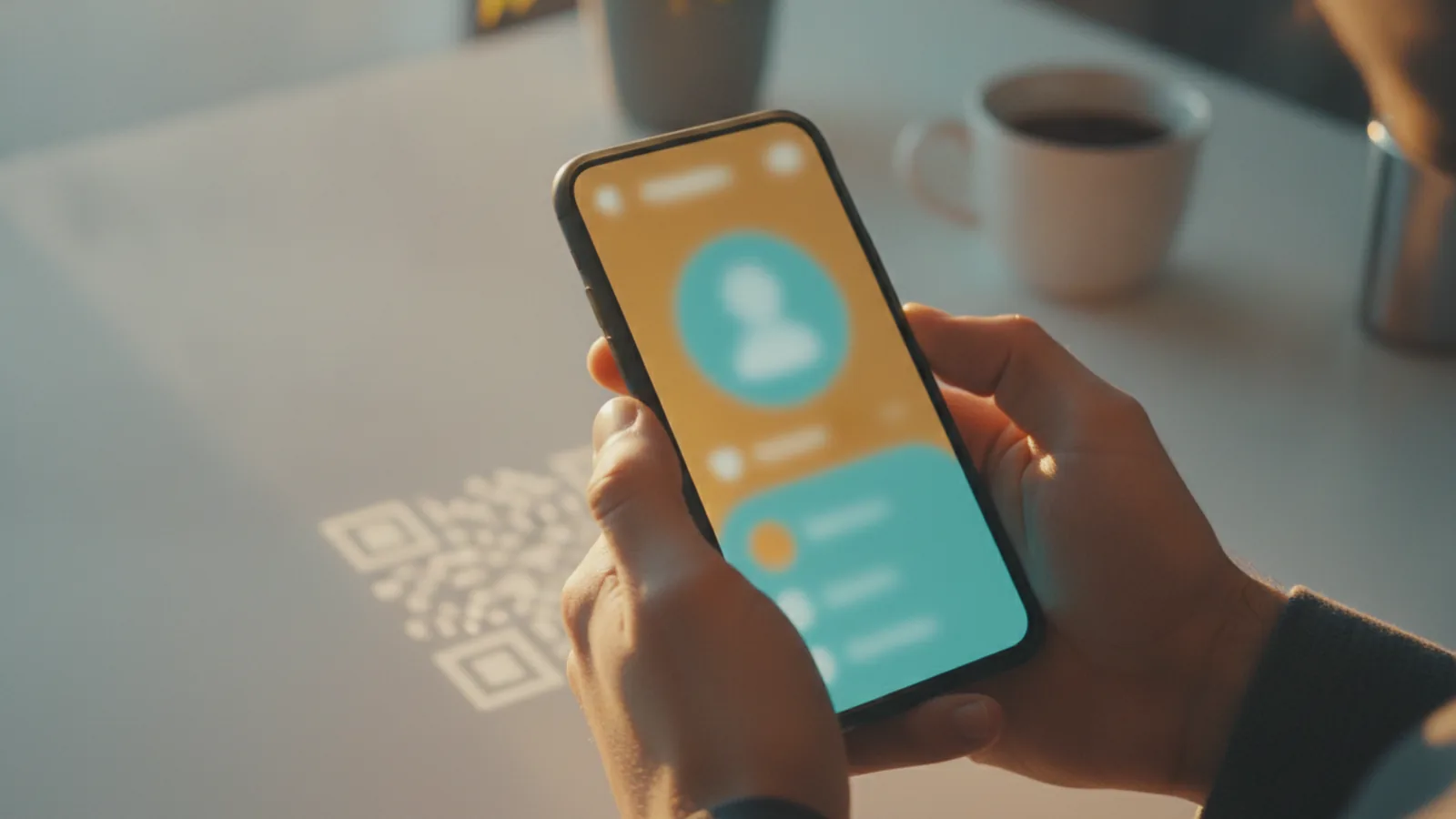
If you’re asking why cant i edit bio on instagram, the most common answer is this: Instagram may be temporarily failing to load profile edit screens. Another frequent cause is an account restriction that limits profile changes. Less often, the Instagram app itself has a bug after an update, or it needs a refresh by logging out and back in.
In practice, the fixes are usually quick. You’ll check account settings, then try basic app troubleshooting like a sign-out, cache clear, and updating the app. You’ll also consider whether your account type is limiting certain profile features.
Start with the fastest steps first. They resolve many “can’t edit” cases without waiting for support. If nothing changes after that, go to deeper checks and contact options.

Common reasons bio editing breaks
Instagram bio editing can fail for several reasons that show up as the same symptom. You may see an error, the page may not save, or the edit option may feel unresponsive. These issues often come from temporary glitches rather than something wrong with your account.
Account restrictions are another real cause. For example, if your account is under review or flagged for policy reasons, some editing actions can be limited. Instagram may also throttle certain actions if it detects unusual activity. That can affect profile management in ways that feel random.
Finally, technical issues inside the app can block edits. A stale session can stop changes from saving. A corrupted cache can break parts of the profile workflow. And a slow connection can make edits look like they worked when they did not.
- Temporary Instagram glitches preventing bio edits
- Account restrictions limiting profile changes
- App bugs after updates
- Cache or session issues blocking saves
- Account type limits for some features
Check account settings that affect profile changes
Before you troubleshoot the app, confirm your account is in a normal editing state. If Instagram shows warnings or limits, the bio may be one of the areas affected. Look for any in-app notices related to account status or security checks. Those hints often explain why editing feels blocked.
Also review your profile management setup. If you recently changed your username, profile, or connected accounts, wait a bit and then try again. Some changes trigger a brief sync period. Trying to edit during that sync window can fail.
Account type can matter too. Some features differ between business and personal accounts. In some cases, the profile editing flow you expect may not appear the same way, even though your bio field still exists. If your bio edit screen looks different, this can be the reason.
Here is a simple way to validate settings impact:
- Open Instagram and go to your profile.
- Check for any status banners or messages about restrictions.
- Verify you are editing the correct profile account.
- Check whether the account is personal or business in settings.
- Try saving a small change, like removing one word.

Troubleshooting steps that usually fix bio editing
When you can’t save changes, start with the session refresh. Logging out and back into Instagram can clear a stuck sign-in state. It also forces the app to reload profile data and the edit screen.
Next, clear the app cache. Cache clearing fixes many “changes won’t save” bugs by removing old data that no longer matches the server state. On Android, cache clearing is often available without uninstalling the app. On iPhone, you may need to reinstall if cache clearing isn’t offered.
Then check your connection. Switch between Wi-Fi and mobile data. If you’re on a VPN, try turning it off briefly. Profile editing uses secure network calls, and unstable routing can cause save requests to fail.
- Log out and back in to refresh the session
- Clear app cache to remove stale data
- Test your network by switching Wi-Fi and mobile data
- Try a smaller edit to rule out character or formatting issues
- Restart the phone if the app behaves inconsistently
If you still can’t edit after those steps, verify basic device conditions. Make sure Instagram has permission to use storage or background activity. Also confirm your phone time and date are set automatically. Those small settings can break secure login and profile calls.
Update the Instagram app (and retry after the install)
Instagram updates often fix bugs that affect profile editing. If you recently upgraded and the bio edit broke right after, updating again can help if a later patch fixes the regression. If your app is out of date, the edit screen may also fail due to server-client mismatch.
After updating, give the app a moment to finish syncing. Then open your profile, tap Edit profile, and try saving a minimal change. This helps you confirm that bio editing works in the current version.
Also watch for any app store notes about known issues. Sometimes Instagram rolls out a fix gradually. If your device doesn’t get the fix immediately, waiting 24 to 48 hours can help.
Retry pattern that works well:
- Update Instagram from your app store.
- Open Instagram and wait for your feed to fully load.
- Log out and log back in once.
- Try changing only one short part of your bio.
- Save, then refresh your profile to confirm the change.

Contact Instagram support when the issue seems account-level
If you suspect an account restriction, you may need official help. Contacting Instagram support is best when the problem persists after app updates and basic troubleshooting. It’s also the right move when you keep getting the same error after several attempts.
When you contact support, include details that help them narrow the cause. Note your phone model, your app version, and when the bio edit problem started. Screenshot any error message, and describe what happens when you press Save. The more exact your steps, the faster support can route your case.
Before you send a request, try one more sign-in refresh. Sometimes support is slow to respond, and another logout can clear a stuck session. If it still fails, you’ll get a cleaner ticket because you already tested common fixes.
If you want an external reference for secure sign-in guidance, you can review the Instagram Help Center. It’s the most direct place to find support paths and account-related troubleshooting.
| What to share | Example |
|---|---|
| When it started | “Bio edits stopped after an app update on June 10.” |
| What happens | “Save spinner ends, but bio doesn’t change.” |
| Device and app info | “iPhone 14, Instagram version X.Y.Z.” |
| Your account type | “Personal account” or “Business account.” |
FAQ: quick answers for “why cant i edit bio on instagram”
Is there a limit on Instagram bio editing?
Instagram bios have character limits. If you paste a long bio, saving may fail. Try a shorter version to confirm.
Why does Instagram let me type my bio but not save it?
This usually points to a session or network issue. Logging out, clearing cache, and testing Wi-Fi vs. mobile data often fix it.
Can my account type restrict bio editing?
It can. Business and personal accounts use different profile workflows. If your edit screen looks different, account type may be a factor.
Does Instagram downtime stop bio edits?
Yes. Temporary glitches can break profile saving even when everything else works. Waiting a day can help if it’s an ongoing platform issue.
Will clearing cache delete my account data?
No. Cache clearing typically removes local app data. Your account stays tied to your login credentials.
When should I contact Instagram support?
Contact support after you update the app and try sign-out, cache clear, and network changes. If an account restriction is the cause, support can confirm next steps.
Frequently asked questions
- Why can’t I edit my Instagram bio?
- Common causes include temporary Instagram glitches, app bugs, or a restricted account. Try logging out, updating the app, and clearing the cache before assuming account-level limits.
- Why can I type my Instagram bio but it won’t save?
- This usually points to a session or network problem. Log out and back in, switch Wi-Fi and mobile data, and retry with a short change.
- Can my Instagram account type stop bio editing?
- Sometimes. Business and personal accounts can use different profile workflows, which may affect how editing behaves.
- Will clearing cache on Instagram delete my account data?
- No. Cache clearing removes local app data, not your account. Your bio and profile stay on Instagram’s servers.
- Should I update Instagram to fix bio editing issues?
- Yes. App updates often fix bugs that break profile saving. Update, then try again after the app finishes syncing.
- When should I contact Instagram support about bio edits?
- Contact support if updates, sign-out, cache clearing, and network changes do not help. Include your device, app version, and what happens when you press Save.
Related reading

How Do You Make Instagram Bio Spaces?
Use line breaks and blank characters to make your Instagram bio easier to scan.
How Do You Change Your Bio Font on Instagram?
Use a Unicode font generator to style your Instagram bio in a few simple steps.

How to Add a Spotify Playlist Link to Your Instagram Bio
Add your playlist, test the link, and help more people find your music.