How to Add a LinkedIn Link to Your Instagram Bio
Add LinkedIn to Instagram with a clear bio link and strong call to action.

Understanding Instagram Bio Links
To add a LinkedIn link to your Instagram bio, edit your profile and paste it into the Website field. Instagram then shows one clickable link below your bio text. Visitors can tap it from your profile page.
Instagram allows only one clickable bio link on a standard profile. This limit makes your link choice important. A direct LinkedIn URL works well when your main goal is profile visits.
First, copy your full LinkedIn profile address. It should look like https://www.linkedin.com/in/your-name. Check the link in a browser before adding it.
- Use your public LinkedIn profile URL.
- Remove extra tracking marks when they add no value.
- Test the link from a phone before sharing your profile.
How to Add Your LinkedIn Link
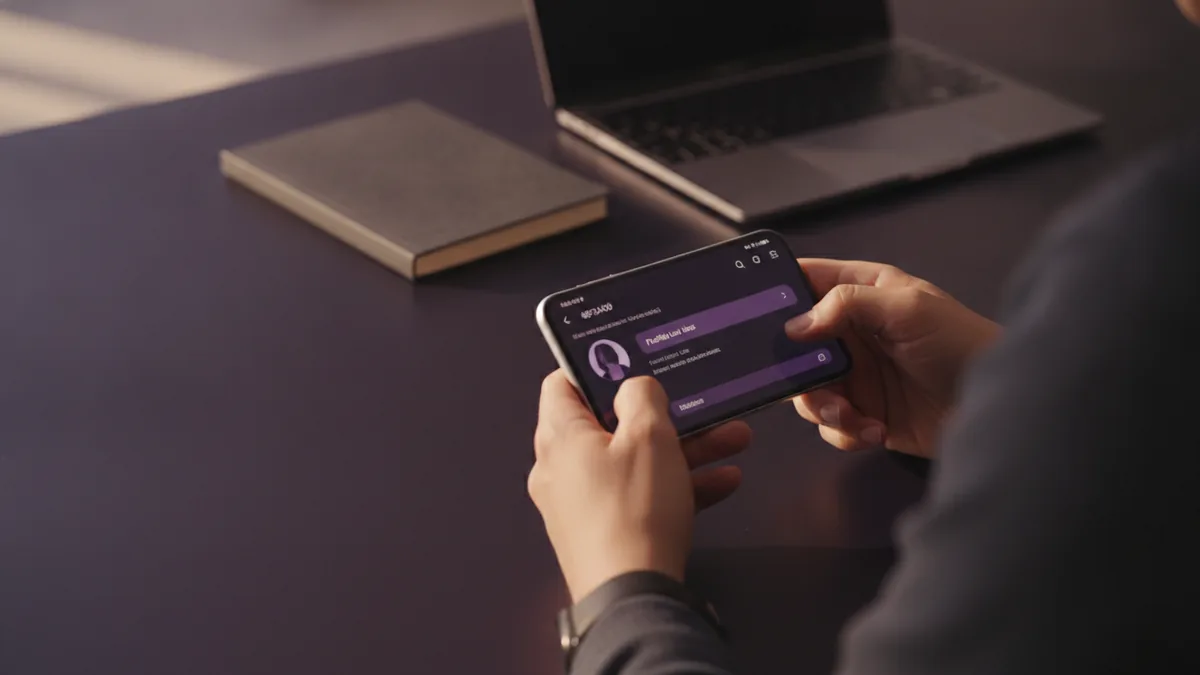
These steps show how to add LinkedIn link in Instagram bio from the mobile app. The labels may shift after an app update. The path stays close to your profile editing tools.
- Open Instagram and tap your profile picture.
- Tap Edit profile beneath your bio.
- Open the Website field in your profile settings.
- Paste your LinkedIn profile URL into that field.
- Tap Done or the check mark to save it.
Now open your public profile and tap the new link. Make sure it opens the right LinkedIn page. A wrong link can send visitors to a sign-in screen or another account.
Next, add a clear call to action to your bio. Try “Connect with me on LinkedIn” or “See my work on LinkedIn.” This short line tells visitors what the link does.
Using a Digital Business Card Link

A direct LinkedIn link suits a single goal. A digital business card works better when you need several contact paths. It can hold LinkedIn, email, a portfolio, and a calendar link.
You place the business card URL in Instagram’s Website field. Visitors tap once, then choose the service they need. This setup turns Instagram’s one-link limit into a useful landing page.
Keep the card focused. Show your name, role, short bio, and two to five key links. Too many choices can slow visitors down.
| Goal | Best link choice |
|---|---|
| Grow LinkedIn connections | Direct LinkedIn profile URL |
| Share work samples | Digital business card with a portfolio link |
| Offer several contact paths | Focused link-in-bio page |
Choose a short URL that looks trustworthy. Avoid random strings or links that hide the destination. Test the card on both a phone and a desktop screen.
Best Practices for Your Instagram Bio

Your bio should explain who you are and why someone should connect. Lead with your role, skill, or main topic. Then add one clear reason to visit LinkedIn.
For example, a freelance designer might write, “Brand designer helping small firms look sharp. View my case studies on LinkedIn.” The first line sets context. The second line gives a reason to tap.
- Keep the call to action short and direct.
- Match the bio promise with your LinkedIn profile.
- Use line breaks so each idea stands apart.
- Update the link when your main offer changes.
- Check the link once each month.
Your LinkedIn headline should also match your Instagram message. Consistent wording builds trust across both profiles. It also helps visitors know they found the right account.
Use a direct link when LinkedIn is your main destination. Use a business card link when visitors need more than one option. Make that choice based on your current goal.
Additional Tips for a Strong Professional Presence

Link-in-bio tools such as Linktree can manage several links from one URL. They can include your LinkedIn profile, work samples, newsletter, and booking page. Keep the page simple so LinkedIn remains easy to find.
Place LinkedIn near the top when professional networking matters most. Use a label such as “Connect on LinkedIn.” Avoid vague labels like “Learn more.” Clear labels set the right expectation.
Review your Instagram bio after each career change. Update your role, offer, location, and main link when needed. A current profile looks more credible than one with old details.
- Pick your main visitor goal.
- Choose a direct link or a digital card.
- Write a clear call to action.
- Test every link on mobile.
- Review clicks and update weak links.
When you add LinkedIn link to Instagram bio, the setup takes only a few minutes. The real gains come from a clear bio and a useful next step. Give visitors one strong reason to tap.
!??Quick Checks Before You Share Your Profile
Before sharing your Instagram profile, check the link from a logged-out browser. This test shows whether visitors can reach your public LinkedIn page. It also catches missing characters in the URL.
Ask a friend to tap the link on a different phone. Then check whether the page loads fast and looks clear. Small fixes can prevent lost visits.
- Confirm the Website field saved the full URL.
- Read your call to action aloud.
- Check that your LinkedIn profile is public.
- Remove old links from any business card page.
That final check keeps your Instagram bio useful. It also gives new visitors a smooth path to your professional profile.
Frequently asked questions
- How do I add a LinkedIn link in my Instagram bio?
- Open Instagram, go to your profile, and tap Edit profile. Paste your LinkedIn URL into the Website field, then save your changes.
- Can I add more than one link to my Instagram bio?
- Yes. Instagram provides one clickable link in the bio area. You can use a direct LinkedIn URL or a page that holds several links.
- What call to action should I use for my LinkedIn bio link?
- Write a short line such as “Connect with me on LinkedIn.” A clear call to action tells visitors why they should tap.
- What is a business card link for Instagram?
- A digital business card can hold LinkedIn, email, a portfolio, and other links. It works well when one direct link cannot meet your needs.
- Can Linktree add a LinkedIn link to Instagram?
- Yes. Tools such as Linktree can place several destinations behind one Instagram bio URL. Put your LinkedIn link near the top.
Related reading

How Do You Add Discord to Your TikTok Bio?
Add a working Discord invite to your TikTok bio and help viewers find your community.

How Do You Edit Your Bio on the Xbox App?
Edit your Xbox bio, share your gaming style, and fix common profile issues.

What Is a Bio Link and How Does It Work?
See how one profile link can lead followers to all your key destinations.