How to Add Symbols in Your Instagram Bio (Cute + Aesthetic)
Use cute symbols in your Instagram bio to boost personality and visual style.

Understanding Instagram bios
Your Instagram bio is the first text people see after your profile picture. It’s limited to one short paragraph, plus any link you add in your profile. Because space is tight, every character should earn its place.
Symbols help because they add meaning without taking extra “text” weight. For example, hearts can signal warmth, borders can structure the bio, and star symbols can highlight what you care about.
Before you change anything, decide what your bio should do. It can describe you, share what you post, or support personal branding with a clear vibe.
If you want a strong visual feel, plan your layout like a mini sign. Use line breaks, short phrases, and a few symbols to guide the eye.
The importance of symbols
Symbols make your bio feel more personal. They can match your interests, your tone, or a current style trend. When used well, they turn “plain text” into a visual shorthand.
Popular choices are heart symbols, star symbols, borders, and emoticons. Hearts are great for friendliness and positivity. Stars can mark highlights, like “featured content” or “best of me.” Borders and dividers help separate roles and links.
There are also kaomojis, which are face expressions made from punctuation. They can feel playful while still staying readable on mobile. Emojis overlap with symbols, but a symbol-only look often feels cleaner.
In practice, symbols are also a positioning tool. They can help people skim faster and find the part that matters to them.
- Use heart symbols for warmth and friendliness
- Use star symbols to spotlight highlights
- Use borders and text dividers for structure
- Use kaomojis for a playful, expressive tone
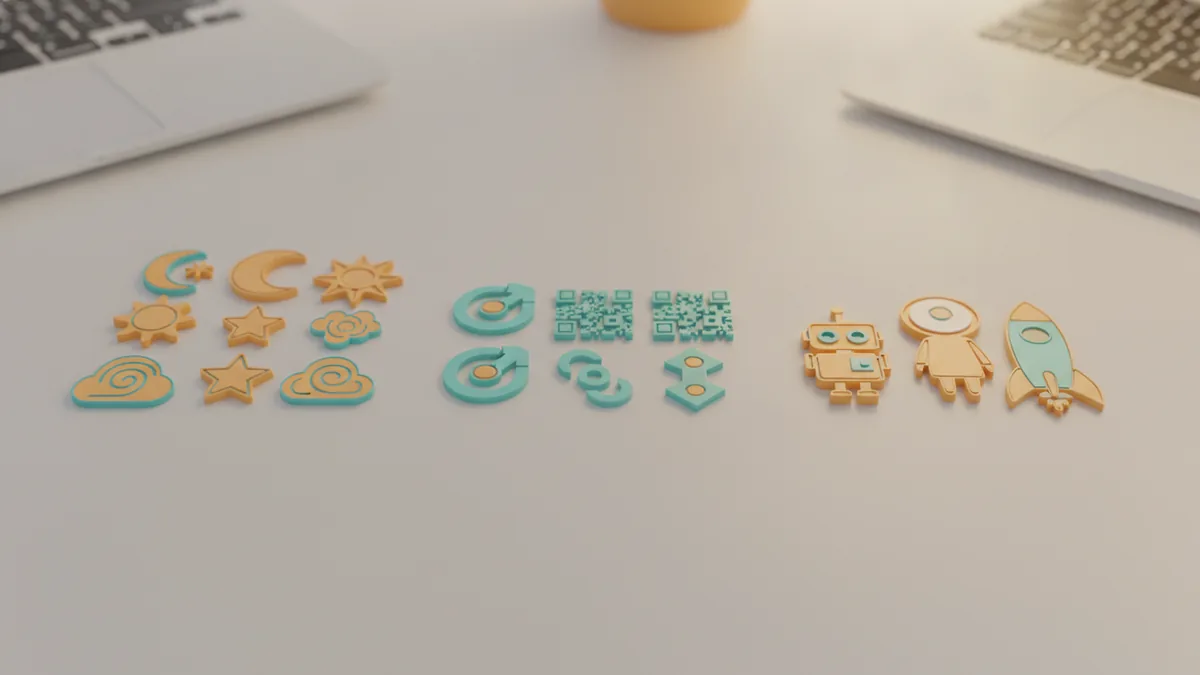
Where to find symbols
You can get symbols in a few minutes by using online lists. Many sites group symbols by category, like hearts, borders, animal symbols, weather symbols, and star symbols. This makes it easier to pick a set that fits your vibe.
If you want full control, you can also create symbols using alt codes. Alt codes are keyboard shortcuts that produce specific characters. The exact method depends on your device and keyboard, so check your system’s instructions before you rely on a shortcut.
Online resources are usually the easiest route for most people. You copy the symbol, paste it into your bio, and adjust until it looks right.
One more useful option is to search for “aesthetic symbols” when you want a cohesive look. These collections often include symbol combinations like small corner brackets, dots, and thin dividers that keep a consistent style.
Popular symbol categories to start with
| Symbol style | Good for | Example use in a bio |
|---|---|---|
| Heart symbols | Warmth, support, community | “Coffee & love ☕️ ♡” |
| Star symbols | Highlights, goals, “top picks” | “New posts ✶ weekly” |
| Borders | Framing sections | “━━━━ Links” |
| Kaomojis | Playful faces without emojis | “Coding dreams (。•̀ᴗ-)✧” |
| Text dividers | Skim-friendly structure | “About me - Daily updates” |
Pick one or two categories so your bio feels intentional. Too many styles can make the text look busy.

How to copy and paste symbols
If you’re searching for how to put symbols in Instagram bio, you’re usually looking for the fastest method. The simplest workflow is copy-paste. First, find the symbol you want in a trusted symbol list.
Next, open Instagram in your app and go to your profile. Tap “Edit profile,” then place your cursor inside the bio field. Paste the symbol where you want it, then check the spacing.
Symbols sometimes change size based on font rendering. That’s why you should avoid pasting a huge block of characters at once. Insert a few, then preview after each change.
When symbols look misaligned, adjust with fewer characters or switch to a simpler style. Thin dividers often stay more consistent than heavy borders.
- Choose a symbol from an online list or collection
- Copy it to your clipboard
- Open Instagram and tap “Edit profile”
- Paste into your bio and add line breaks
- Preview on your profile and refine spacing
If you’re wondering how to get symbols in Instagram bio without hunting, save a small “starter set” in your notes. Include your favorite heart symbols, star symbols, and one divider style. Then you can mix and match quickly as your bio changes.
Creating aesthetic combinations
Aesthetic symbols work best when they share a style. For example, thin dividers pair well with small stars and minimal hearts. Chunky borders pair better with bold icons and short lines.
Think in layers. Layer one is the text message, like “photography and travel.” Layer two is structure, like a divider or corner border. Layer three is emphasis, like one or two heart symbols or star symbols.
Symbol combinations can also reflect personal branding. If your content is calm and minimal, choose neat symbols and avoid loud emoticons. If your content is playful, kaomojis and weather symbols can reinforce that tone.
Trends also matter. People often adopt aesthetic symbols that match their feed vibe. Use what fits you, not what looks impressive to strangers.
Simple combo templates
- Intro + divider + vibe: “About me • daily updates”
- Highlight list: “Top picks ✶ travel ✶ food ✶ design”
- Community tone: “Here for good vibes ♡ always kind”
- Playful face: “Learning in public (。•̀ᴗ-)✧”
Keep your combinations consistent across lines. If one line uses hearts and another uses heavy borders, the bio can feel like multiple templates collided.
Tips for using symbols effectively
Legibility comes first. A symbol should be easy to read at a glance on a phone screen. If people have to zoom in, the symbol is hurting your bio, not helping it.
Don’t overwhelm the text. A good rule is to use symbols to frame ideas, not replace them. For most bios, a few symbols per line is plenty.
Also watch out for “character clutter.” Some special symbols look great on one device, but different on another. If you notice strange spacing after you paste, swap to a simpler symbol.
Finally, match the symbols to your goal. If your bio needs clarity for personal branding, use borders and dividers. If your goal is a cute, friendly vibe, use heart symbols and small emoticons.
- Use legible symbols and preview on mobile
- Limit symbol count so text remains the main focus
- Prefer one consistent style for borders and dividers
- Test a couple of versions and keep the one that reads fastest
Mini editing checklist (practical, not obsessive)
- Read your bio out loud once
- Check that each line has one clear idea
- Confirm symbols don’t push text off-screen
- Make sure your link prompt still makes sense
Examples of symbol usage
Here are some examples you can copy as starting points. Replace the text with your details, then adjust symbols until it matches your personality.
These examples focus on symbols to use in Instagram bio for structure, emphasis, and tone. They also show how to add symbols in Instagram bio without turning the bio into a wall of characters.
Example 1: Clean and personal branding
“Creator & writer - sharing weekly lessons ✶
Books I love ♡ Podcasts I recommend ✶”
Example 2: Cute and friendly
“Hi! I’m here for good vibes ♡
Cute finds & cozy days ✿ ☁︎
Always learning (。•̀ᴗ-)✧”
Example 3: Highlighted services with borders
“━━━━ Bookings ━━━━
Photos ✶ editing ✶ brand help
DM for details ✶”
Notice the pattern. Each example uses a small number of symbol types. That keeps the vibe consistent and the bio easy to scan.
If you want a quick path, start with one divider style and two emphasis symbols. Then build from there after you see how it looks on your profile.
Step-by-step
- 01 Pick your symbol style
Choose one vibe, like cute, clean, or playful. Start with hearts or stars plus one divider style.
- 02 Copy symbols you like
Find a symbol you want, then copy it to your clipboard. Save a small set in your notes for faster edits.
- 03 Paste into your Instagram bio
Open your profile, tap Edit profile, and paste symbols into the bio field. Add line breaks so your layout stays scannable.
- 04 Preview and adjust spacing
Check your bio on your phone. Remove or simplify symbols that look too large or push text off-screen.
- 05 Lock in a consistent combo
Use the same divider style across lines. Keep emphasis symbols limited to highlight key points.
Frequently asked questions
- How to add symbols in Instagram bio without messing up spacing?
- Copy one symbol at a time and paste it into a short line. After each change, check your profile preview to confirm alignment and size.
- How to get symbols in Instagram bio from websites?
- Open a symbol list, copy the character, then paste it in the bio edit box. If it looks off, switch to a simpler symbol or divider.
- What are cute symbols for Instagram bio?
- Heart symbols, star symbols, small weather icons, and kaomojis are popular choices. Pick a few that match your tone and keep them consistent.
- Which symbols to use in Instagram bio for a clean, aesthetic look?
- Thin borders, dot dividers, and small star accents usually read well. Use them to separate ideas, not to fill every line.
- Can I create symbols using alt codes?
- Yes, many symbols can be typed via alt codes depending on your device. Use your system’s instructions, then test the result by pasting into Instagram.
Related reading

Does Bio X4 Work for Weight Loss?
What Bio X4 may do, what research shows, and what to expect from using it.

How to Put Instagram in Your Tinder Bio
Add a social handle with care, keep your bio personal, and check Tinder’s latest rules.

What Is a Facebook Page Bio and How Do You Improve It?
Write a concise Facebook bio that tells customers what you do and where to find you.