How to Make Different Lines on Your Instagram Bio
Break up your Instagram bio with clear lines that are easy to scan.

Why Line Breaks Make Your Bio Easier to Read
To make different lines on your Instagram bio, edit your profile, type each part on its own line, then save and check the result. A line break separates details so visitors can scan your bio instead of reading one dense block. This small change can make your profile feel clearer and more organized.
Instagram bios have a 220-character limit, so each line needs a job. Use a short line for who you are, then add a specific detail, a trust cue, and a call to action. These parts help visitors understand what you offer and what they can do next.
- Identity: Say who you are or what your account is about.
- Specificity: Add a useful detail, such as your service or subject.
- Trust cue: Include a real credential, result, or location.
- Call to action: Tell visitors what to do next.
For example, a baker might use one line for the shop name, one for custom cakes, one for the town, and one to invite orders. Keep the wording brief. A clear four-line bio often works better than a crowded sentence.

How to Add Line Breaks in the Instagram App
You can add line breaks while editing your bio in the Instagram mobile app. Open your profile, tap the edit-profile option, then select the bio field. Type the first part of your bio and use the return key to start the next line.
The return key may not appear at first. Tap the keyboard's number or symbol key, or switch to another keyboard view, to find it. The exact key layout can vary by phone and keyboard app. When your lines look right, save the changes and view your profile.
- Open Instagram and go to your profile.
- Choose the option to edit your profile.
- Tap the bio field and write your first line.
- Use the return key before each new line.
- Save your bio, then check how it appears.
If the return key still seems missing, draft your bio in a notes app first. Copy the finished version and paste it into the bio field. Then save it and check that the line breaks stayed in place.
Common Formatting Mistakes to Avoid
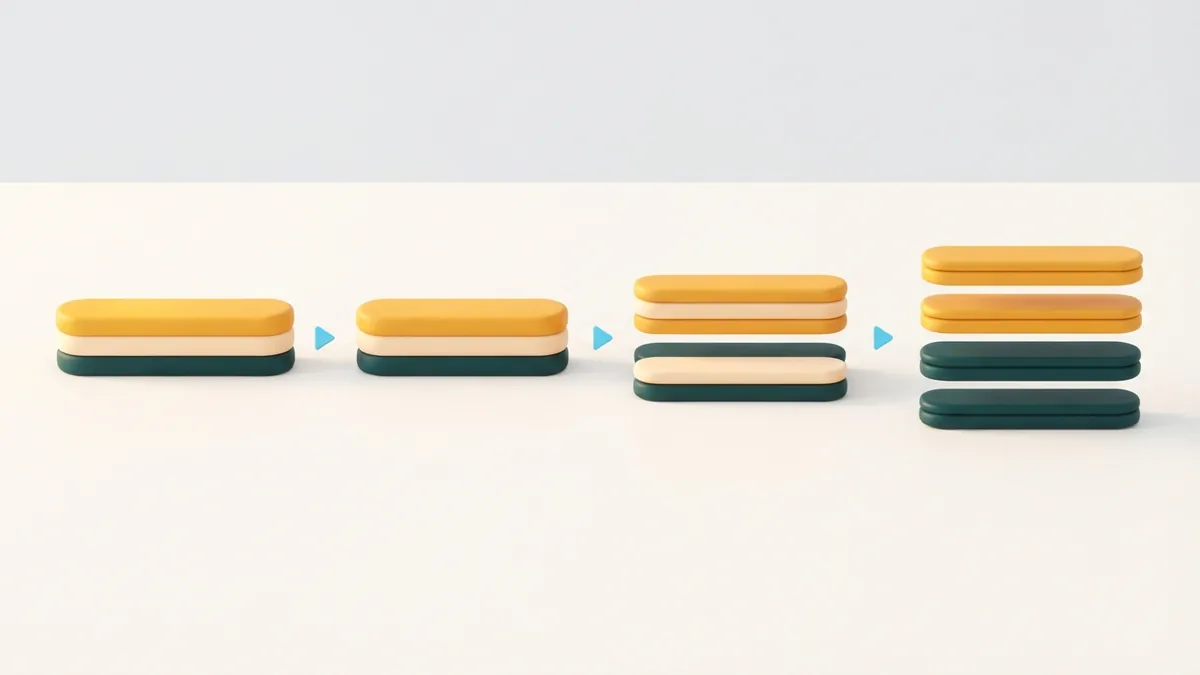
Empty lines can make a bio look more spread out, but Instagram may remove them after you save. They also use space without adding useful detail. If your bio feels cramped, shorten the wording or remove a less useful line instead.
Another common problem is adding too many symbols or emoji. These can break up text, but a row of decorative marks may make the bio harder to scan. Pick a simple style and use it with care. Also, check your character count before saving.
Line breaks can look different on various screens. A long phrase might wrap on a narrow phone, even when you entered it as one line. That can make a four-line bio appear longer or less balanced. Use short phrases and review the saved version on more than one device.
- Avoid blank lines that may vanish after saving.
- Do not use repeated symbols as spacing tools.
- Keep each line short enough to avoid awkward wrapping.
- Check the character limit before you save.

Using Notes and Other Tools to Keep Your Layout
A notes app can help when you want to plan your bio before editing it. Write each line separately, then copy and paste the draft into Instagram. This makes it easier to compare versions and spot extra spaces before saving.
Some online bio tools let you add line breaks or copy formatted text. They can save time, but check what they do with your text before using them. Avoid sharing private details with a tool you do not trust. Instagram's own editor is the safest place to make the final change.
Some people use a preserving character to keep a blank-looking line from disappearing. These characters take up space and may display differently across devices. Use one only if a normal line break cannot give you the layout you want. Test the result, and remove the character if it creates odd spacing.
Tools can help with drafting, but they cannot guarantee the same display on every screen. After pasting your bio, save it and inspect your live profile. That final check catches lost breaks, extra spaces, and lines that wrap unexpectedly.
Best Practices for a Clean, Clear Bio
Give each line one purpose, and put the most useful information first. Visitors often scan rather than study a profile, so lead with your identity or main offer. Follow with a detail that helps people decide whether your account fits their needs.
Use trust cues only when they are true and easy to understand. A location, years of work, or a clear specialty may add context. Then give one direct next step, such as visiting a link or sending a message. Too many requests can leave visitors unsure where to start.
Keep the bio easy to read aloud. If a line needs several symbols or extra explanation, rewrite it in plainer words. Use emoji only when they clarify a topic or add a useful visual cue. They count toward your limited space, so use them with care.
Finally, test the saved bio on both mobile and desktop. Look for odd gaps, unexpected wraps, or lines that blend together. Make small edits, save again, and check both views until the layout feels consistent.
Examples of Instagram Bios with Different Lines
Examples can help you see how to write on different lines in an Instagram bio without making it feel crowded. Treat these as patterns, not scripts. Change each detail to match your account, and keep the claims accurate.
- Local service: Home baker
Custom cakes for small events
Based in Bristol
Message me to book - Creator: Simple home workouts
Short routines for busy days
Certified fitness coach
Start with the link below - Small shop: Handmade ceramic mugs
Made in small batches
Based in Leeds
See new pieces below
Each sample gives the lines separate roles. The first names the account, the next adds a clear detail, and the following line offers context or trust. The final line points visitors toward one action.
Try your own version in a notes app, then paste it into Instagram. If you want to get different lines on your Instagram bio, the return key is the key step. Save the bio and inspect it on a phone and a computer. Trim any line that wraps awkwardly or uses space without helping visitors.
Step-by-step
- 01 Open your profile editor
Go to your Instagram profile and choose the option to edit your profile.
- 02 Write the first bio line
Tap the bio field and enter a short identity or account description.
- 03 Add breaks between lines
Use the keyboard's return key before each new line. Keep every line short and useful.
- 04 Save and check the layout
Save your changes, then view the bio on mobile and desktop. Fix any gaps or awkward wraps.
Frequently asked questions
- How do I add different lines to my Instagram bio?
- Edit your profile in the Instagram app, tap the bio field, and use the return key between lines. Save the bio and check the result on your profile.
- Why can’t I see the return key when editing my bio?
- The key may be hidden in another keyboard view. Try the number or symbol key, or draft your bio in a notes app and paste it in.
- How many characters can an Instagram bio have?
- An Instagram bio can have up to 220 characters. Count spaces and symbols when you plan your lines.
- Why did Instagram remove blank lines from my bio?
- Instagram may remove empty lines when you save the bio. Use concise lines instead of blank space to separate ideas.
- Do Instagram bio line breaks look the same on every device?
- Not always. A line may wrap differently on a small phone screen, so check your saved bio on both mobile and desktop.
Related reading

How Do You Get a Return Button on Instagram?
No standard return button exists, but other profile actions can guide visitors.

How to Add a Facebook Bio and Link It on Instagram
Write a Facebook bio that fits your profile, link it on Instagram, and check your privacy.

How to Make a Link in Bio on Instagram
Add, test, and track a bio link that gives Instagram visitors a clear next step.