How to Put the Apple Logo in Your Instagram Bio
Add the Apple logo to your bio with Unicode. Copy, paste, and avoid display issues.
Understanding the Apple logo
The Apple logo you see on many Apple devices is a special Unicode character. It’s commonly referenced as U+F8FF (). On Apple hardware, it typically renders with the familiar Apple shape. That same character can appear different on other platforms.
This matters because your Instagram bio is just text. Instagram does not store a custom image of the logo. It displays the character you paste. So the key to “how to put apple logo on instagram bio” is copying the correct Unicode character, not an image file.
If you’ve ever tried pasting an Apple logo that looked like a blank box, you hit a rendering gap. The system font on that device is the deciding factor. Even if the character is correct, the font might not support it.
Why use the Apple logo in your Instagram bio
Using the Apple logo can be part of your visual identity on social media. For example, it works well for creators who build on Apple devices. It can also add a small brand effect near your name, niche, or location.
It can also help your bio stand out without adding clutter. Logos are compact. When placed next to your tagline, they act like a quick visual cue. That’s often the same reason people use emoji in social media.
One note: if you’re using it for a business, keep it accurate and respectful. The Apple logo is a trademark. Your goal should be clarity, not confusion about affiliation.
Methods to add the Apple logo to your bio
There are two practical routes: copy from a reliable character source, or use a device’s special character input. Both end with the same action. You paste the Unicode character into the Instagram bio field.
For most people, copying a character is fastest. You can then paste it anywhere you can enter text. This includes the Instagram bio customization screen in the app.
- Copy the Apple logo character:
- Paste it into your Instagram bio text box
- Save your profile changes
If you prefer a “special character input” approach, you’ll find it via your phone or computer keyboard settings. Apple devices often show it in symbol menus. Windows and Android may not show a direct Apple logo entry, depending on installed fonts. That’s why copying a known Unicode character is usually more reliable.
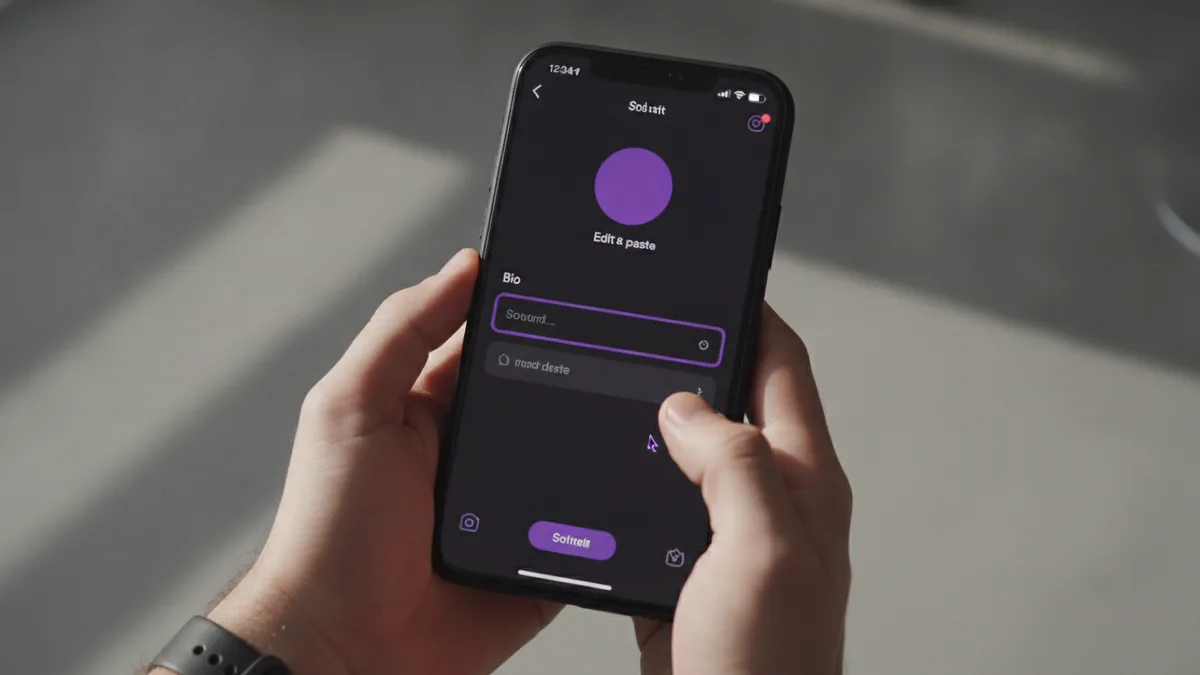
To complete “how to add apple logo in instagram bio” using copy and paste:
- Open the Instagram app and go to your profile.
- Tap Edit profile (or Edit profile info).
- Place your cursor in the Bio field.
- Paste from your clipboard.
- Tap Done or Save.
Using Unicode for the Apple logo
Because the Apple logo is Unicode, you can think of it like a character you can move between apps. The most commonly used code point is U+F8FF. When a platform supports it, the character shows as the Apple logo shape.
When you copy the logo, you’re copying that exact Unicode character. That’s why it can work across apps. Your only job is to paste it into Instagram’s bio field. In practice, “special character input” is just one way to insert U+F8FF.
Compatibility varies. On Apple devices, the system font is designed to render it nicely. On non-Apple devices, the font that Instagram uses may not include the glyph. In that case, you might see a missing symbol box, or a placeholder character.
Also test how it looks in context. Instagram shows your bio in several places, like your profile and story taps. A logo can shift alignment depending on your font and spacing. Keep your line short so the symbol doesn’t wrap awkwardly.
If you want a clean result, try these placements:
- At the start of the bio line: Your tagline
- Next to a key theme: Apps • Design • Dev
- Between emoji icons: 🍎 “your niche”
Alternatives to the Apple logo
If the Apple logo does not display well on some devices, you still have options. First, try the same character from another source. Occasionally, people copy an image or a different variant that looks similar but isn’t the same Unicode character.
If rendering remains inconsistent, consider a substitute that behaves more predictably across platforms. For example, an apple emoji can provide a similar vibe with better support. Emoji rendering is more standardized, even if it still varies by device.
You can also use text-only cues for visual identity on social media. A simple word mark like “Apple” or “iOS” avoids the missing-glyph problem. It’s less iconic, but it’s more consistent everywhere.
For people worried about Apple branding effects, another option is to focus on your actual value. Put “Apple-focused” language in plain text. That keeps the bio clear even if the symbol fails to render.
Best practices for Instagram bios with the logo
Start with legibility. Your bio has limited space. If you add the logo, keep the line readable on a small screen. Avoid long lines that force wrapping. Wrapping can push the symbol into the wrong visual spot.
Use the logo as an accent, not a replacement for your message. One logo is usually enough. Two or three can look busy, especially on devices where it displays as a symbol box. If you’re using it alongside emoji use in social media, choose a small set so the bio feels intentional.
Here are practical tips:
- Place near your first keyword (your niche or offer).
- Use one symbol style per line to reduce spacing surprises.
- Preview on multiple devices before publishing.
- Leave a short gap around the logo for cleaner alignment.
- Keep your bio under about 1–2 lines for most layouts.
Finally, re-check after you edit. Instagram sometimes changes how it trims or scales text. If the logo looks fine right after saving, open your public profile to confirm it appears like you expect. That quick check is often the difference between a great bio customization and a frustrating afterthought.
Quick troubleshooting
If you see a blank box or a “missing character” look, the issue is usually font support. Try copying the exact character again. If it still fails on non-Apple devices, switch to an emoji apple or plain text alternative.
If the logo shows on your Apple device but not on a friend’s phone, that’s expected. Your bio relies on their installed fonts and Unicode glyph support. Instagram doesn’t guarantee a specific logo rendering across all platforms.
With that in mind, you can still use the character confidently. Just treat it as a style accent, not a mission-critical element.
Frequently asked questions
- How to put Apple logo on Instagram bio?
- Copy the Unicode character and paste it into your bio field. Save your profile, then check how it looks on your public profile.
- How to add Apple logo in Instagram bio on iPhone?
- Open Edit profile, tap the Bio text box, and paste from your clipboard. If you can’t find it, use special character input or copy it from a character source.
- Does the Apple logo show on Android and Windows?
- It depends on font support. Some devices show a blank box or different glyph for U+F8FF.
- Why does my Apple logo not appear after pasting?
- You may have copied an image or a different symbol variant. Copy the exact Unicode character and paste again.
- What are good alternatives if the Apple logo doesn’t render?
- Use an apple emoji or plain text like “Apple” or “iOS.” Those options usually display more consistently across devices.
- Can I use the Apple logo alongside emoji in my bio?
- Yes. Keep spacing clean and avoid too many symbols so your bio stays readable on mobile.
Related reading

How Do You Make Instagram Bio Spaces?
Use line breaks and blank characters to make your Instagram bio easier to scan.

How Do You Change Your Bio Font on Instagram?
Use a Unicode font generator to style your Instagram bio in a few simple steps.

How to Add a Spotify Playlist Link to Your Instagram Bio
Add your playlist, test the link, and help more people find your music.