Where to Find and Use Instagram’s Link in Bio
Find, edit, and improve your Instagram bio link with clear steps.
Understanding Instagram’s Link in Bio Feature
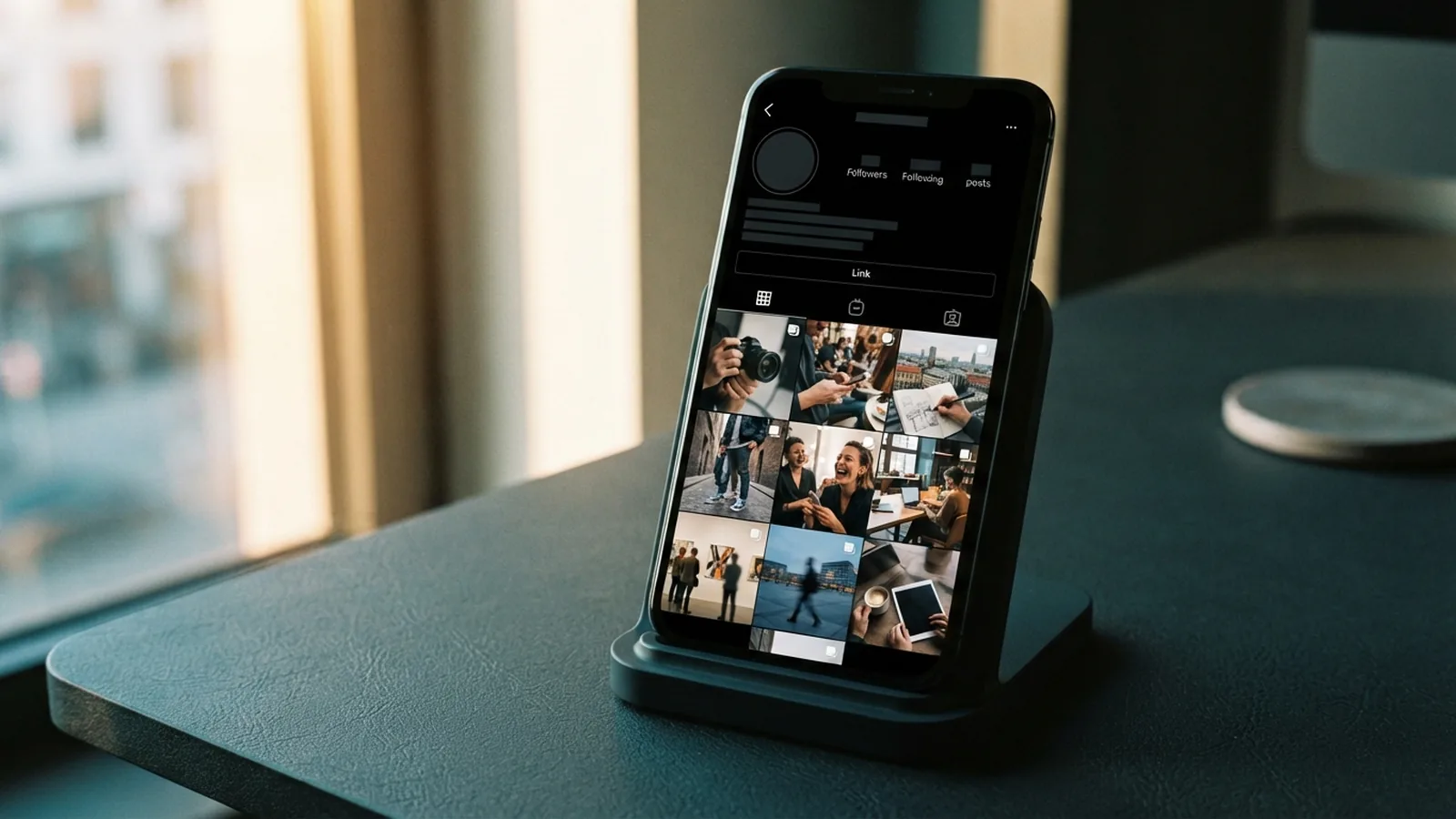
If you ask, “where is the link to bio in Instagram,” start with the profile page. Open the account, then look below the profile picture and bio. Any active link sits in that area.
Instagram gives each profile one main place for outside links. A personal account may show one clickable URL as plain text. Creator and business accounts show a Links button instead.
That button can hold more than one destination. The profile owner may add a shop, website, sign-up page, or contact page. The exact view depends on the account type and Instagram’s current app design.
The link can feel hard to spot by design. Instagram keeps the main focus on posts, Reels, and Stories. This encourages people to stay inside the app.
One link also creates a common problem. A follower may expect a different page after seeing an older post. Regular link updates can reduce that confusion.
Where to Find the Instagram Bio Link
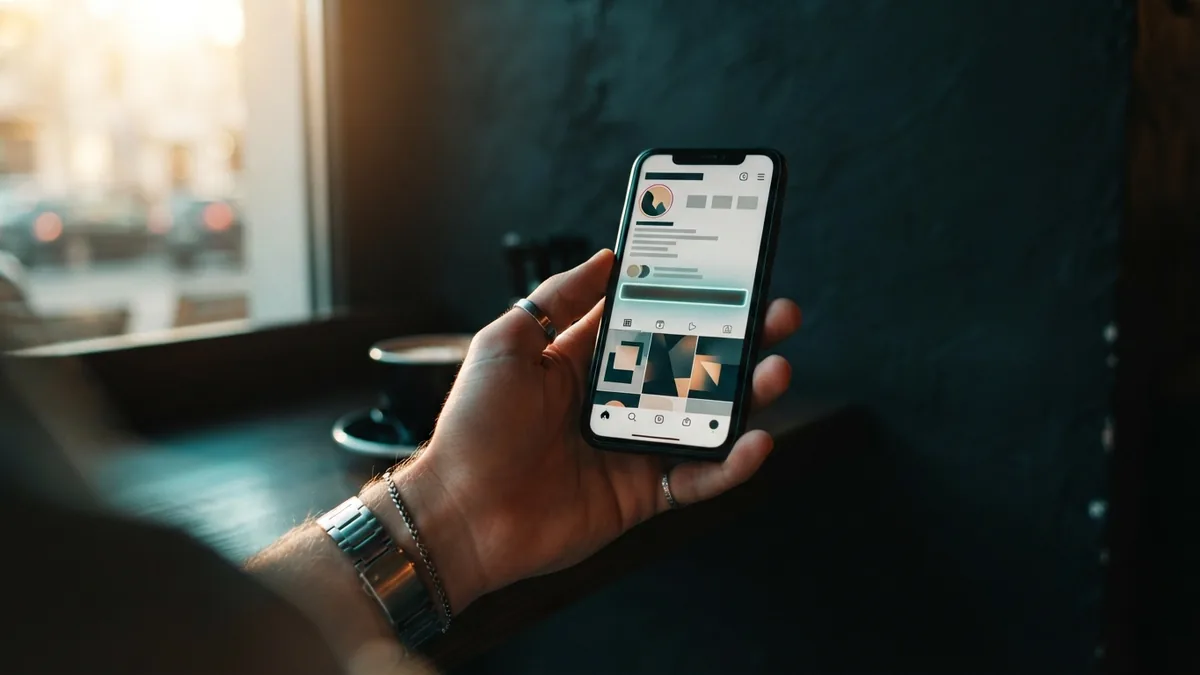
To find an Instagram bio link, open the Instagram mobile app. Search for the account, or tap its name in a post or message. Then open the profile.
Look beneath the short bio near the top of the page. On some accounts, you will see a URL in blue or underlined text. On others, you will see Links beside other profile details.
Tap the URL or the Links button. If several destinations appear, choose the one that matches your goal. A page owner may place the newest offer first.
- Open the correct Instagram profile.
- Check below the bio and profile details.
- Tap the URL or the Links button.
- Choose a destination from the list, if shown.
The Instagram bio link location can vary by device and account. The app may also test new layouts with small groups of users. If you do not see a link, the account may not have added one.
How to Add or Change Your Bio Link
You must edit the link through the Instagram mobile app. Desktop editing remains limited for some profile link tools. The safest route is the app on an iPhone or Android phone.
Open your profile, then tap Edit profile. Choose Links, then select Add external link. Paste the full web address and add a short title if Instagram asks for one.
To change an existing link, return to the same Links screen. Tap the destination, update the address, and save it. Check the page from your public profile after saving.
- Open Instagram and tap your profile picture.
- Tap Edit profile.
- Open Links or the profile link field.
- Add a new URL, or tap an old link to edit it.
- Save the change, then test the link as a visitor.
Use a complete address that begins with https://. Test the link on mobile data as well as Wi-Fi. This can reveal pages that load only on your home network.
Keep the page title clear and useful. For example, use “Join the workshop” instead of “Click here.” Clear labels help visitors pick the right destination.
Best Ways to Use One Instagram Bio Link
A single link works best when it has one clear job. Send visitors to your current offer, newest video, booking page, or main resource. Do not make people guess what matters most.
Match the link with your latest posts. If a Reel promotes a guide, send the bio link to that guide. If the offer ends Friday, replace the link after the offer ends.
Set a review date for every active link. A weekly check suits a busy campaign. A monthly check may suit an account with fewer updates.
| Account goal | Best main destination | Useful label |
|---|---|---|
| Sell one offer | Product or checkout page | Shop the offer |
| Grow an email list | Short sign-up page | Get the free guide |
| Build trust | Best work or case study | See my work |
| Book calls | Simple booking page | Book a call |
Link rotation means changing the destination as your focus changes. Keep old campaign links in your records. This helps you explain past posts when followers ask for them.
Do not send every visitor to a crowded home page. A focused page usually gives them fewer choices. Fewer choices can make the next step easier.
How to Encourage More Link Engagement
Tell people what they will get from the link. Say “Get the recipe in my bio” rather than “Link in bio.” The first phrase gives a reason to tap.
Repeat the message in posts, captions, and Stories. Use the same promise each time. This builds a clear path from your content to the profile.
Place the call to action near the end of short videos. Give viewers time to open your profile. A rushed prompt may disappear before they can act.
- State the benefit before naming the link.
- Use one action in each campaign.
- Update the bio line when the offer changes.
- Check clicks and sign-ups each week.
- Remove expired offers at once.
Use simple tracking links when you need campaign data. A short tagged URL can show visits from Instagram. Keep the link readable if visitors can see it.
Watch more than clicks. Compare visits with sign-ups, sales, or bookings. A high click count means little if the next page fails to help visitors.
Troubleshooting Common Link Problems
If the link does not open, check the address first. Look for missing characters, extra spaces, or an old page path. Paste the address into a private browser window.
If you cannot find the link, refresh the profile. Close and reopen the app if needed. The account may have removed the link or changed its account type.
Some links can trigger safety checks or blocked-page warnings. Test the destination from another device. A page that works for you may still fail for visitors.
- No link appears: Ask the owner whether the link is active.
- The button is missing: Update Instagram and reopen the profile.
- The page shows an error: Test the URL outside Instagram.
- The wrong page opens: Ask the owner to replace the old destination.
Account type can also change link visibility. Personal accounts often show a plain URL. Creator and business accounts may group links behind the Links button.
If you manage the account, view your profile from a second account. This gives you the visitor’s view. It can expose a missing label or a poor link order.
Link Aggregators and Other Options
A link aggregator puts several destinations on one landing page. You can list a shop, newsletter, portfolio, and contact page there. The Instagram bio then needs only one main URL.
This setup helps when different followers need different resources. It also reduces the need for daily link changes. Still, too many choices can slow people down.
Keep the landing page short. Put the most important action first. Remove links that have not earned visits or support your current goal.
You can also use a focused page on your own website. This gives you more control over design and visitor data. A digital contact card can work well for service providers.
Choose the simplest option that fits your need. One strong destination often beats a page full of buttons. Review the result each month and change the path when your goal changes.

A Simple Routine for Better Bio Links
Start each campaign with one clear destination. Write the promise in your bio and repeat it in your posts. Then test the path from the profile to the final action.
Review the link once a week during active promotions. Check the page, the title, and the order of any listed destinations. Remove expired pages before followers find them.
Use the mobile app whenever you need to edit the link. Desktop tools may not show every profile option. After each change, check the public view.
The answer to “how to find Instagram link in bio” is simple once you know the layout. Open the profile and look below the bio. Tap the URL or the Links button, then choose the right destination.
Step-by-step
- 01 Open the profile
Open Instagram on your phone and visit the profile you want to check. Look below the bio and profile details.
- 02 Find the link control
Tap the visible URL or the Links button. The account type controls which option appears.
- 03 Choose a destination
Select the resource you need from the listed links. If one URL appears, tap it to open the page.
- 04 Edit the link
To change your own link, open Edit profile and choose Links. Add a new URL or update an existing one.
- 05 Test the result
View the public profile from another account or device. Open the link and confirm that the right page loads.
Frequently asked questions
- Where is the link in bio on Instagram?
- Open the Instagram profile and look below the bio. Tap the visible URL or the Links button.
- Why can I not see the Instagram bio link?
- Creator and business accounts usually show a Links button. Personal accounts may show one URL as plain text.
- How do I edit the link in my Instagram bio?
- Open your profile in the mobile app. Tap Edit profile, then Links, and update or add the destination.
- Can Instagram bio links have multiple destinations?
- Yes. Creator and business profiles can show several destinations through the Links button. Personal profiles may have fewer link options.
- Why does an Instagram bio link open the wrong page?
- The owner may have changed or removed the link. The page may also have moved, closed, or blocked access.
- How can I get more clicks on my Instagram bio link?
- Use one focused destination for each campaign. Change it often, and tell followers what they will gain from tapping it.
Related reading

How to Write a Good OnlyFans Bio That Feels Like You
Write a bio that sets clear expectations and gives the right fans a reason to subscribe.

How Do You Add a Link to Your Tumblr Bio?
Add a clickable Tumblr bio link, test it, and share more destinations from one page.
How to Add a Snapchat Bio and Link It on Instagram
Edit your Snapchat bio, then make your username easy to find on Instagram.