Where to Find and Use the Link in Bio on Instagram
Find, change, and use your Instagram bio link with clear steps.

What Instagram’s Link in Bio Does
To find a link in bio on Instagram, open the profile and look beneath its bio.
The link may show as plain text or as a button named Links. Tap it to open the linked page. Instagram lets most accounts add one main clickable link in the bio.
That single link can send followers to a shop, site, newsletter, booking page, or campaign. It gives your profile one clear path to outside content. Small placement changes can affect how easy that path is to spot.
Instagram’s layout can also make the link seem missing. The link sits near the bio, not inside each post caption. Followers may need to tap the profile name first.
Where to Find the Link in Bio on Instagram
Start by opening the Instagram mobile app. Search for the account, then tap its profile name. Look below the short bio and above the post grid.
On some profiles, the link appears as blue or dark text. On others, you will see a Links button. Tap the text or button once.
If you see no link, the account may not have added one. The owner may also have removed it or limited access to the linked page. A weak connection can cause the page to load slowly.
Use these quick checks when the link is hard to spot:
- Check the profile header, not a post caption.
- Look below the bio and near the follow controls.
- Tap Links if that button appears.
- Update Instagram if the profile layout looks old.
- Try the profile again after checking your network.
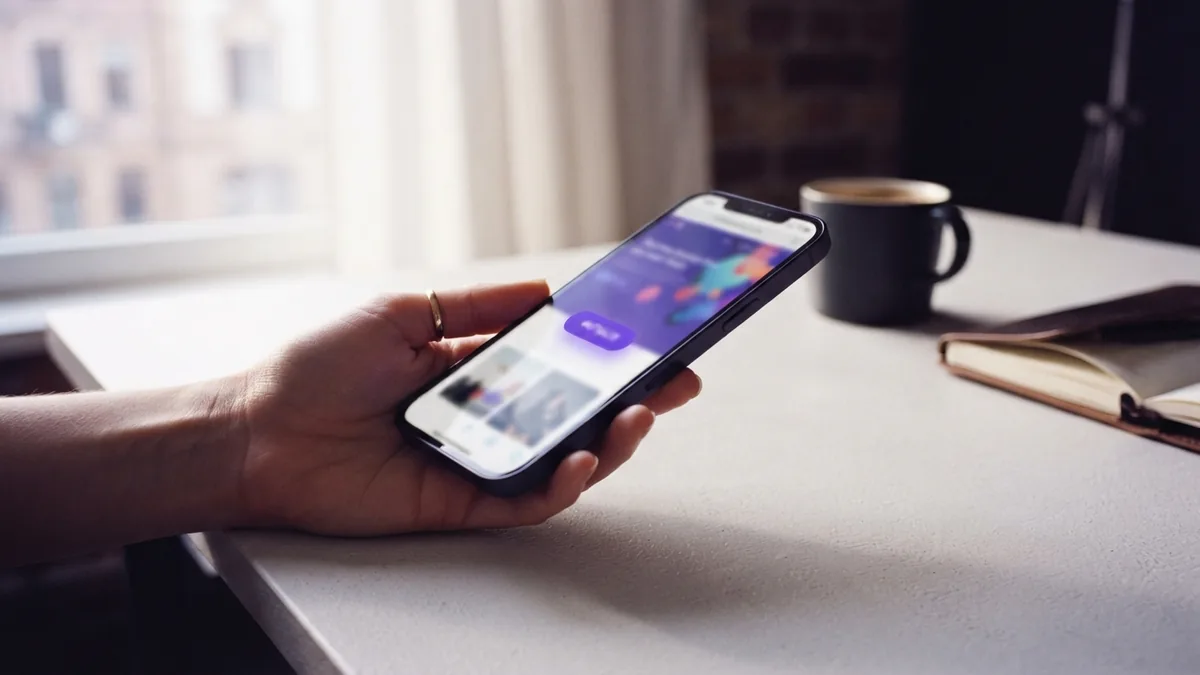
How Account Type Changes Link Visibility
The link placement depends on the profile type. Instagram may show personal, creator, and business accounts in different ways.
On a personal account, the link can appear as plain text beneath the bio. It may look less prominent than other profile controls. Followers still tap it to open the page.
Creator and business accounts usually show a visible Links button. This button makes the link easier to notice. It can also hold more than one destination in some account setups.
Do not assume every profile uses the same layout. Instagram tests changes and rolls out new features over time. Your app version, region, and account type may affect what you see.
| Account type | Typical link display | Best check |
|---|---|---|
| Personal | Plain text below the bio | Tap the visible web address |
| Creator | Links button or profile link | Tap Links beneath the bio |
| Business | Links button or profile link | Check the profile action area |
How to Add or Change Your Instagram Bio Link
You must use the Instagram mobile app to update the bio link. The desktop site may let you edit some profile details, but link editing can be limited there.
Open Instagram and tap your profile picture. Then tap Edit profile. Choose Links, then tap Add external link.
Paste the full web address into the URL field. Add a short title if Instagram offers that field. Tap Done or the save button.
To change link in bio on Instagram, return to the same Links area. Tap the current link, replace the old address, and save. Visit your profile afterward to test the new destination.
- Open the Instagram app on your phone.
- Go to your profile and tap Edit profile.
- Open Links and choose Add external link.
- Paste the destination address.
- Add a clear title when available.
- Save, then test the link from your profile.

Best Ways to Use the Link in Bio
A good link supports one clear goal. Decide what you want visitors to do before choosing the destination. The goal could be a sale, signup, download, or booking.
Match your bio message to the page behind the link. If your bio promises a free guide, the link should open that guide. A mismatch makes visitors leave fast.
Use a direct call to action in posts and stories. Say exactly what followers should do next. For example, write “Get the recipe through the link in our bio.”
Keep the wording short and specific. “Shop the new range” gives more direction than “Visit our links.” Clear prompts help people act without guessing.
- Use one main goal for each campaign.
- Place the same call to action in related posts.
- Send visitors to a mobile-friendly page.
- Test every link before promoting it.
- Remove old offers after they end.
Using a Link Aggregator Without Losing Focus
A link aggregator places several destinations on one page. It can hold a shop, newsletter, latest post, and contact page. This helps when one bio link must serve several needs.
More choice can also dilute attention. A visitor may see five buttons and choose none. Keep the list short and rank each link by value.
Put the main action first. Use plain labels such as “Book a call” or “Shop the guide.” Avoid vague labels that force people to guess the result.
Review the page each month. Remove expired campaigns and weak links. Track visits when the tool supports simple click data.

Tips for More Link Engagement
Tell followers where the link is more than once. Use your bio, captions, stories, and pinned posts. Repeat the direction when the offer matters.
Make the benefit clear before asking for the tap. “Download the meal plan” gives a stronger reason than “Tap our link.” Benefits should match the page visitors reach.
Use a short campaign link when you need basic tracking. Add one tracking tag for each major source, such as stories or posts. This shows which message brings the most visits.
Check the link on both phone and desktop browsers. Watch for broken pages, slow load times, and expired offers. Fix problems before they waste profile traffic.
Strong bio link management is simple. Keep one main goal, use clear prompts, and check the path often. The best link is the one followers understand at once.
Step-by-step
- 01 Open your Instagram profile
Launch the Instagram mobile app and tap your profile picture. This opens the profile you need to edit.
- 02 Open Edit profile
Tap Edit profile beneath your profile details. Find the Links option in the edit screen.
- 03 Add or select a link
Tap Add external link for a new address. Select the current link when you need to replace it.
- 04 Enter the destination
Paste the full web address. Add a short, clear title when Instagram provides that field.
- 05 Save the change
Tap Done or the save control. Wait for the profile to refresh.
- 06 Test the profile link
Return to your profile and tap the link. Confirm that it opens the right page on your phone.
Frequently asked questions
- Where do I find a link in bio on Instagram?
- Open the Instagram mobile app and visit the profile. The link sits below the bio as plain text or a Links button.
- How do I change the link in my Instagram bio?
- Tap Edit profile, open Links, and edit the current URL. Save the change, then test it from your profile.
- How many links can I add to my Instagram bio?
- Instagram supports one main clickable bio link for most profiles. A link aggregator can send visitors to several pages.
- Why does the Instagram bio link look different on each account?
- Personal accounts may show a plain text link. Creator and business accounts often show a visible Links button.
- How can I get more clicks on my Instagram bio link?
- Use a clear call to action and send visitors to one useful page. Keep any link list short and place the main action first.
Related reading

How to Find Instagram Profiles Through Their Bios
Find Instagram profiles with focused bio terms, related hashtags, and username clues.

How Many Links Can You Add to Your Instagram Bio?
Add up to five links to your Instagram bio and manage them from Edit profile.
How to Write a Facebook Bio That Feels Like You
Write a Facebook bio that feels personal, clear, and easy to remember.