How to Add Your Threads Link to Instagram Bio
Add your Threads profile link to your Instagram bio with simple steps.

Threads and Instagram: what to know first
To show your Threads profile in your Instagram bio, you add a Threads profile URL. That’s the fastest path to share your text updates with your Instagram followers.
Threads is a text-based social app that connects to Instagram. It uses the same login identity, so your accounts stay linked.
After you sign up on Threads, Instagram typically shows an automatic Threads icon. When it appears, it can make cross-posting smoother. You can still add your link manually, which works even when the icon doesn’t show yet.
In this guide, you’ll learn how to add your thread to instagram bio using a copy-paste URL. You’ll also get best practices so the link earns clicks, not just space.

Why linking Threads in your Instagram bio helps
Linking Threads from your Instagram bio can improve both traffic and user engagement. Your Instagram profile is already where many people decide whether to follow you.
When you add a Threads link, you give followers a simple next step. Instead of “find me on Threads,” they can tap and land on your profile right away.
It also supports cross-promoting social media in a way that feels natural. Your Threads content can be part of your wider Instagram story, not a separate effort.
For creators and businesses, this matters because engagement strategies tend to work best when people can move fast. A bio link is a short route from interest to action.
Step-by-step: add a Threads link to your Instagram bio
Here’s how to show thread on instagram bio by adding your Threads profile URL to the “links” section.
You only need two things: your Threads profile URL and access to edit your Instagram profile.
- Open Threads and go to your profile. Tap your profile icon to view your Threads profile.
- Copy your Threads profile URL. Look for a share option, then choose “copy link” or copy the profile URL.
- Switch to Instagram and open your profile. Tap your profile picture, then tap Edit profile.
- Add the Threads link. Choose Add link in the bio links section.
- Paste the URL. Insert the link, then save your profile.
Those steps cover the core workflow for how to add thread in instagram bio. If your link field asks for a URL, paste the Threads profile URL exactly.
If you see the Threads icon after signing up, Instagram may offer a shortcut. Still, copying your Threads profile URL from Threads keeps it predictable.
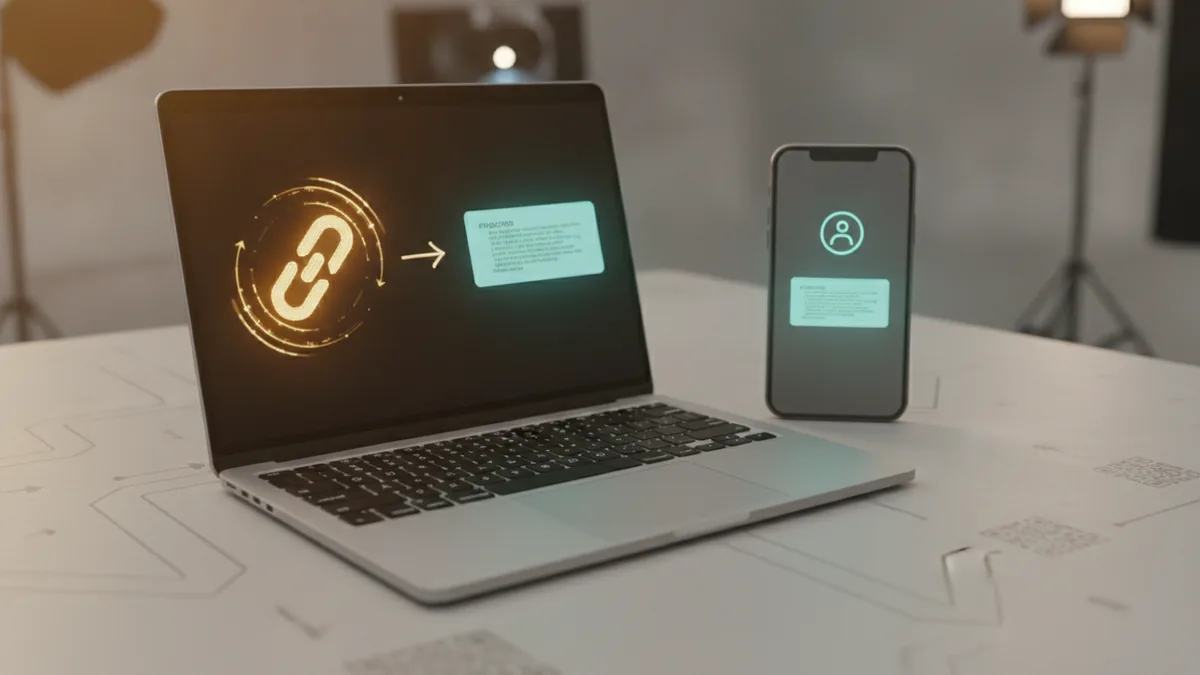
Example: what your link should do
After you save, tap the link from your Instagram bio on a test account. You want it to open your Threads profile, not a blank page.
If the link opens but looks wrong, double-check you copied your public Threads profile URL. Private profiles can behave differently depending on follower status.
If you changed your Threads username recently, your old URL may stop working. Re-copy the latest profile URL and update your Instagram bio.
Best practices for Instagram bio links
Adding the link is only half the job. You also need profile aesthetics and clear signals that your Threads content is worth the click.
Start with what makes your Threads unique. Post ideas that work on Threads often differ from image-first posts on Instagram.
Then, use short call-to-action (CTA) language near the link so people know what they’ll get.
- Highlight unique content on Threads. Mention the angle you post there, like “daily writing,” “behind-the-scenes,” or “threaded tips.”
- Use a clear CTA in your bio. Examples include “Follow on Threads for weekly updates” or “More thoughts here.”
- Match your bio voice. If your Instagram bio is upbeat, keep Threads CTAs upbeat too.
- Keep it visually scannable. Use line breaks and short phrases so the link stands out.
When people click, you want them to see value within seconds. Pin one strong Threads post or keep your latest posts focused.
For engagement strategies, consistency beats bursts. If you post on Threads weekly, update your bio language to reflect that cadence.
Also consider link management tools only if you have multiple destinations. For most creators, one Threads link is enough, so you can keep choices low.

Bio CTA ideas you can copy (and adjust)
Use these as templates and rewrite them to match your niche and posting style.
- “More threads from me - daily tips.”
- “Thoughts, prompts, and updates on Threads.”
- “Follow for writing + small experiments.”
- “New Threads posts every week - join in.”
Keep CTAs specific. “Go to Threads” is weaker than “Follow for daily tips.”
Common mistakes to avoid when linking Threads
Small errors can make your link feel broken, even when it’s technically correct. These are the most common problems people hit when they try to put thread in instagram bio.
First, people often copy the wrong URL. Make sure you copied your Threads profile link, not a post link or an internal share link.
Second, people forget to update their bio after changes. If you modify your Threads handle or privacy settings, revisit the link.
- Copying the wrong link. Double-check it opens your profile page.
- Using vague bio text. A generic line reduces clicks.
- Not updating after changes. If you change usernames, refresh the URL.
- Expecting engagement without posting. Followers click when you have something new to read.
- Overloading your bio with many links. One strong link beats five weak ones.
If you notice clicks but low engagement, review your first few Threads posts. Your profile should quickly match the promise in your CTA.
Also, test on mobile. What looks fine on one device can hide or truncate link text on another.
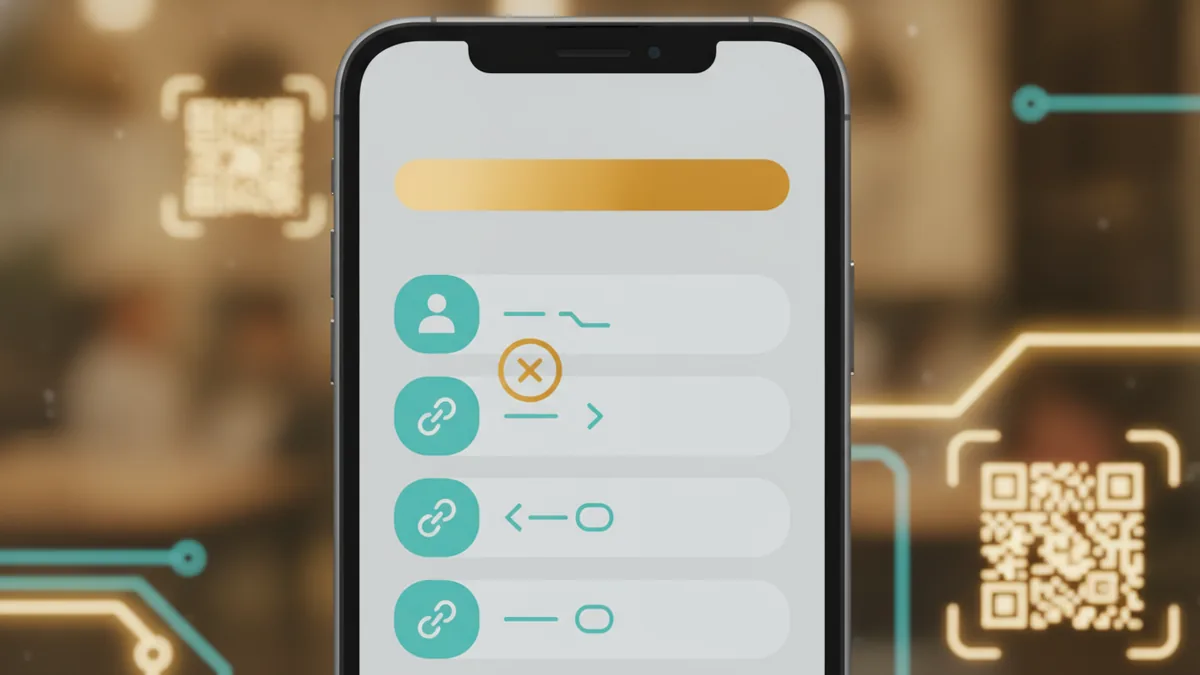
How to remove Threads from your Instagram bio
If you no longer want the Threads link in your Instagram bio, you can remove it quickly. This is useful after a campaign ends or if you’re changing your cross-promoting social media plan.
The option usually lives in the same place where you added it.
- Open Instagram and go to your profile.
- Tap Edit profile.
- Find the link field that contains your Threads URL.
- Remove that link and save your changes.
People often search for how to remove thread name for instagram bio. If your bio shows a visible link label, removing the link entry is what clears it.
After saving, view your profile as a visitor. You should see the bio link gone or replaced by your remaining links.
Conclusion and final tips
To add your Threads link to your Instagram bio, copy your Threads profile URL. Then paste it in Instagram under the bio links section.
That’s how to add your thread to instagram bio in a way that’s reliable. It also works well for how to put thread in instagram bio when you want predictable results.
For best visibility, keep your CTA clear and your Threads content aligned with that promise. Highlight what’s unique on Threads, then post consistently so new visitors stick around.
Finally, revisit your Instagram bio regularly. Update it when your Threads activity changes, and make sure your link still points to the right profile.
If you’ve been wondering how to add thread on instagram bio or how to put your thread in your instagram bio, this setup should feel straightforward. With the right CTA, the link becomes a real engagement tool, not just a URL.
Frequently asked questions
- How do I add my Threads link to my Instagram bio?
- Copy your Threads profile URL in Threads. Then open Instagram, go to Edit profile, tap Add link, paste the URL, and save.
- Why doesn’t the automatic Threads icon show in Instagram?
- Sometimes it appears only after certain account checks or updates. You can still add your Threads profile link manually using your copied profile URL.
- What URL should I copy from Threads for my Instagram bio link?
- Copy your Threads profile link, not a single post link. If it opens to your profile page, you copied the right thing.
- How can I get more clicks to my Threads link from Instagram?
- Write a clear bio CTA that promises what followers will find on Threads. Keep your most recent Threads posts aligned with that promise.
- How do I remove the Threads link from my Instagram bio?
- Open Instagram, go to Edit profile, find the Threads link entry, remove it, and save your changes.
- Does linking Threads from Instagram increase engagement?
- It can, because it reduces friction for interested followers. Engagement improves most when your Threads posting stays consistent after the link goes live.
Related reading

Does Bio X4 Work for Weight Loss?
What Bio X4 may do, what research shows, and what to expect from using it.
How to Put Instagram in Your Tinder Bio
Add a social handle with care, keep your bio personal, and check Tinder’s latest rules.

What Is a Facebook Page Bio and How Do You Improve It?
Write a concise Facebook bio that tells customers what you do and where to find you.