How to Add a Threads Link to Your Instagram Bio
Add your Threads link to your Instagram bio. Copy your profile URL, set the link, and drive more clicks.
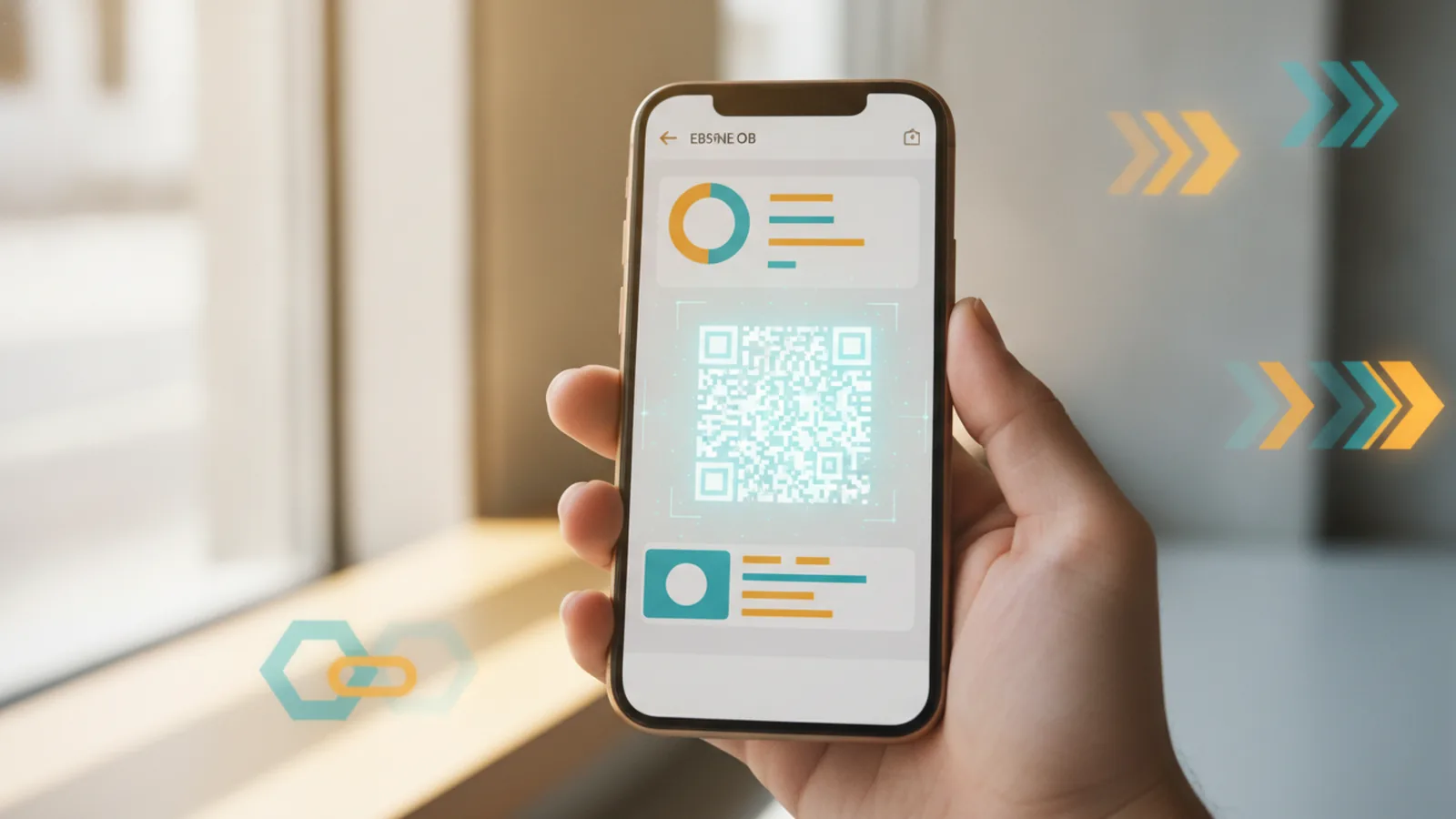
Quick answer: add Threads to your Instagram bio in minutes
To add a Threads link to your Instagram bio, copy your Threads profile URL and paste it into the Instagram bio “Website” field. That’s the core move. Then you should add a clear call to action so people know what to click and why.
If you’re searching “how to add threads to instagram bio” or “how do i add threads to my instagram bio,” this is the same workflow. The only difference is what you call the target: a threads profile link in bio, a clickable website link, or an updated Instagram bio with threads.
Once the link is live, your next job is simple. Encourage clicks with a short line people can scan fast. Also keep the link fresh if your Threads profile URL changes.
Introduction to adding Threads from Instagram bios
Instagram bios are small, but they carry real weight. They’re often the first place people decide whether to follow you. Adding the Threads link helps your audience find your Threads app presence without searching.
This matters for cross-platform engagement. When your Instagram audience has one obvious path to your Threads content, you get smoother discovery and better follow-through.
In practice, the Instagram bio link becomes a mini bridge. You’re telling visitors, “Here’s where I post next.” That is a direct part of a social media strategy and professional branding strategy.
Benefits of adding a Threads link to your Instagram bio
When you add threads link to instagram bio, you usually get three wins: more traffic, stronger follower engagement, and a cleaner look.
Boost traffic. Instead of hoping people find Threads on their own, you send them directly. Even small click lifts can matter if your profile already gets consistent daily views.
Improve engagement. Threads is conversation-first. If people land on the right profile fast, they’re more likely to read posts, react, and follow. That supports content consistency across platforms.
Strengthen professional appearance. A tidy bio with a relevant link feels intentional. It signals that you’re active, and it helps with professional branding strategy, not just growth tactics.
Some creators also use link aggregators, but a direct threads profile link in bio is often simpler. It removes extra choices and keeps the journey focused.
- More clicks from profile visitors who already trust your Instagram presence
- Higher chance of follow conversion because the destination matches your brand voice
- Better clarity for newcomers who do not know what Threads is
- Less friction than asking people to search inside the Threads app
Step-by-step guide to add Threads to your Instagram bio
This is the process most people mean when they ask, “how to add threads in bio” or “how do you add threads to your instagram bio.” First you find your Threads profile URL. Then you paste it into Instagram.
1) Copy your Threads profile URL
Open the Threads app and go to your profile. Tap your profile link or use the share option on your profile page. Choose the option that gives you your profile URL.
When you copy it, verify it opens to your own profile. If you paste the wrong link, you’ll lose trust fast. It also makes it harder to track user engagement tracking later.
2) Open your Instagram profile settings
Go to your Instagram profile and tap Edit Profile. Look for the Website field. Some accounts show “Link” or “Website,” but it’s the same idea.
If you see multiple link-related fields, use the one that appears as the clickable website on your profile page. That is where your threads profile link in bio should live.
3) Paste the Threads URL into the Website field
Paste the copied Threads profile URL into Website. Save your changes. Revisit your profile from a different device if possible to confirm the link works.
This step is the “add threads link to instagram bio” action itself. If you wonder “how add threads id in instagram bio,” the answer is no. Instagram does not usually require you to paste an ID number.
4) Add a simple CTA line to your bio
A link without context often underperforms. Add a short call to action near your link to tell people what they’ll get. For example: “Follow my Threads for daily updates” or “Join the conversation on Threads.”
People click more when the benefit is obvious. Use short phrases that match bio aesthetics and are easy to scan.
- Copy your Threads profile URL from the Threads app
- Go to Instagram > Edit Profile
- Paste the URL into the Website field
- Save, then test the link from your profile
- Add a one-line CTA so visitors know why to click

Best practices for your Instagram bio presentation
Best practices for instagram bio are less about fancy formatting. They’re about clarity, scannability, and consistent messaging.
Start with a “who + why” statement. Then add the CTA line right near the link. Instagram visitors skim quickly, especially on mobile. Make your intent obvious within a second.
Next, match your Threads content promise to what people actually see. If your Threads is for quick tips, don’t tease it as a long-form newsletter. Content consistency reduces un-follows.
Use CTA strategies that fit small screens
Try CTA strategies that sound like invitations, not demands. Avoid generic “link in bio” phrasing unless your audience already expects it. Instead, connect Threads to a specific value.
For example, a creator can say: “More behind-the-scenes on Threads.” A coach can say: “Training updates and Q&A on Threads.” A shop can say: “New drops first on Threads.”
These examples also support social media strategy because they define the channel role.
- Make the benefit specific. “Daily tips” beats “updates.”
- Keep it short. Aim for under about 10 words for the CTA line.
- Use action language. “Follow,” “join,” or “read” can lift clicks.
- Keep tone consistent. Your Threads voice should match your bio voice.
Optimize visual flow
Bio aesthetics matter because they affect how quickly people read. Put your main message in the top lines. Keep the CTA line close to it.
If you use emojis, use them sparingly. One or two can add scan value. Too many can clutter the bio and reduce attention on your link.
Also consider what Instagram features people see next. If your profile has highlighted Stories, your bio link should complement that flow rather than compete with it.
Track results and refine
If you can, watch for changes after you update instagram bio with threads. Look at profile visits, link clicks, and follows in the days after the change. Many people see the biggest lift right away, then a smaller steady gain.
That pattern helps you adjust your CTA. If clicks are low, your CTA likely needs more benefit. If clicks are fine but follows are low, your Threads content promise may be mismatched.
Even without deep analytics, you can use a simple comparison. Note the click and follow trend before and after you change the bio link.
Common mistakes to avoid when you re-add Threads to your bio
Most problems come from link errors, unclear CTAs, or forgetting updates. These issues can make it feel like “how to add threads back to instagram bio” is broken when it’s really just outdated content.
Also remember that you might update the link after account changes. People ask “how to re add threads to instagram bio” when they switch profiles, rebuild accounts, or copy the wrong URL.
Here are the most common mistakes and how to fix them quickly.
| Mistake | What happens | Fix |
|---|---|---|
| Pasting the wrong link | Users end up on a different profile or a dead page | Copy again from Threads and re-test on your Instagram profile |
| No CTA next to the link | People do not understand why they should click | Add a short benefit line and an invitation to follow or join |
| Unclear positioning | Visitors click but do not follow | Make your bio promise match your Threads content |
| Outdated link after changes | The link still works, but your content focus changed | Update the bio when you change your Threads strategy |
| Assuming “ID” is required | People look for an ID and paste something unusable | Use the profile URL, not an ID, unless Instagram requires it |
When your Threads link needs a reset
Reset the link if you’ve changed your Threads handle, moved accounts, or switched brands. Also reset it if your share link formatting changes. When you do this, “how to add threads to bio” becomes a repeatable routine, not a one-off task.
After you paste the new URL, check the profile preview and test click from another device. That small test can prevent days of lost traffic.
Conclusion
Adding a Threads link to your Instagram bio is one of the highest-leverage bio updates you can make. You copy your Threads profile URL, paste it into Instagram’s Website field, and then add a clear call to action.
When you focus on clarity and consistency, you support cross-platform engagement without adding friction. You also improve professional branding strategy by making your online presence feel connected.
Finally, treat the link as a living part of your profile. If you update your Threads direction, update instagram bio with threads again. Keep the link correct, keep the CTA fresh, and watch the engagement move.
Frequently asked questions
- How do I add a Threads link to my Instagram bio?
- Copy your Threads profile URL, then go to Instagram > Edit Profile. Paste the URL into the Website field and save your changes.
- Where do I find my Threads profile URL to add to Instagram?
- Open the Threads app and go to your profile. Use the share option to copy your profile link, then paste it into Instagram’s Website field.
- What should I write in my bio to get people to click the Threads link?
- Add a one-line call to action with a clear benefit, like “Follow for daily updates” or “Join the conversation on Threads.” Keep it short so it’s easy to scan.
- Do I need to add a Threads ID to Instagram bio?
- Usually no. Instagram typically accepts the Threads profile URL in the Website field. Use the link you can share from Threads, not an ID number.
- How do I re-add Threads to my Instagram bio if I changed my Threads handle?
- Copy the new Threads profile URL from the Threads app. Then update the Instagram Website field with the new URL and test the click from your profile.
- How often should I update my Instagram bio link to Threads?
- Update it when your Threads profile link changes or when your content focus shifts. Also review it after major account or branding updates.
Related reading
How Do You Add Public Figure to Your Instagram Bio?
Add Public Figure to Instagram with the right account type and bio setup.

Can You Put Multiple Links in Your Instagram Bio?
Add up to five useful links to your Instagram bio with these simple steps.
What Does Link in Bio Mean on Instagram?
Find the Instagram bio link and turn it into a useful path for followers.