Why Doesn’t My Link Work in My Instagram Bio?
Find out why your Instagram bio link fails and how to test and fix it.
Common reasons Instagram bio links fail
If your Instagram bio link does not work, check the URL, the page it opens, and any redirects between them. A typo, expired page, or mobile loading fault can stop a link from working. Test the link outside Instagram first. Then check it inside the app.
The exact failure gives you a useful clue. If the link will not save, check its format and Instagram’s current link rules. If it saves but does not open, test the URL and page. If it opens a warning or the wrong site, review any shortener or redirect.
Try the link on more than one phone if you can. A page may work on a desktop but fail on mobile. It may also depend on a browser setting, a sign-in, or a network connection.
- Link will not save: Check for spaces, missing URL parts, or an unsupported link.
- Link opens an error: Check the destination page and its address.
- Link opens the wrong place: Review redirects and short links.
- Link works for you only: Test it on another phone and network.
Check the link format and destination
A web address should use a valid format. For most sites, start with https://, then add the domain and page path. For example, use https://example.com/shop, not just example.com/shop.
Look for spaces, extra punctuation, and spelling errors. A trailing period copied from a sentence can become part of the link. The same can happen with a comma or bracket. Paste the address into a plain note first, then inspect it before adding it to your bio.
Open the exact destination in a mobile browser. Check that the page loads without an error, asks for no unexpected sign-in, and shows the right content. A link to a page that was deleted, moved, or set to expire can still appear in your bio while leading nowhere.
Check that the page uses a secure address and loads on a phone. If you changed your website setup, test both the main domain and the full page path. A working home page does not prove that every deeper page works.
- Copy the full URL from your bio.
- Paste it into a mobile browser and load the page.
- Check the page content, then test any key buttons or forms.
- Replace the bio link if the page is gone or has moved.
Know when Instagram may limit a link
Instagram can limit links it sees as unsafe or spam-like. A link may also fail because a site blocks traffic from certain apps or networks. These checks can change over time, so a link that worked before may need a fresh test.
Redirects can add trouble. A redirect sends a visitor from one address to another. A chain of several redirects may load slowly, break on mobile, or look suspicious to a platform. Use the shortest route to the page you want people to see.
Link shorteners are handy, but use them with care. Some services change their rules, expire links, or trigger warnings on certain platforms. If a short link fails, replace it with the full destination URL. If you need a short link, test it from Instagram on both iPhone and Android when possible.
Do not assume every failure means Instagram blocked the link. The destination host may be down, or a security tool may block a visit. Compare the same link in Instagram, a mobile browser, and a desktop browser. That helps show where the fault lies.
Test the link on the devices people use
Instagram is mostly used on phones, so mobile testing matters most. Open your profile in the Instagram app and tap the link as a visitor would. Check that the page fits the screen and that its main action works without zooming.
Test while signed in and, if practical, from a browser where you are not signed in. This can reveal pages that only work for the site owner. Also try Wi-Fi and mobile data. A network filter or weak connection can make a sound link seem broken.
Use this quick test path before you share a new link. It separates profile issues from page issues. Keep a note of which step fails so you can fix the right part.
- Tap the link from your Instagram profile.
- Open the same address in your phone’s browser.
- Try the page on a second device or network.
- Check that the final page has not expired or moved.
- Repeat the test after you edit the bio link.
If the link works in a browser but not in Instagram, copy it again and remove any shortener or redirect. If it fails everywhere, fix the destination page first. Test again after each change, rather than changing several things at once.
Make your Instagram bio links more reliable
Use a direct link to the page that best matches your post or offer. Each extra hop can slow visitors down and create another point of failure. Keep the address stable, and avoid links that expire unless you plan to replace them.
When you update a page, test the new address before putting it in your bio. If the old page has moved, set one clear redirect or update the link itself. Check the final page on a phone, not only on your computer.
Make the destination easy to use. It should load quickly, fit a small screen, and show visitors what to do next. A link can technically open and still feel broken if the page is hard to read or its main button does not work.
Keep a simple link check as part of your routine. Test after changing your bio, changing a website page, or switching link services. If someone says the link is broken, ask what device they used and what happened after tapping it. That detail often points to the cause.
- Prefer a direct, stable HTTPS address.
- Keep redirects short and use shorteners only after testing.
- Check mobile loading, page access, and key buttons.
- Replace expired links as soon as the offer or page changes.
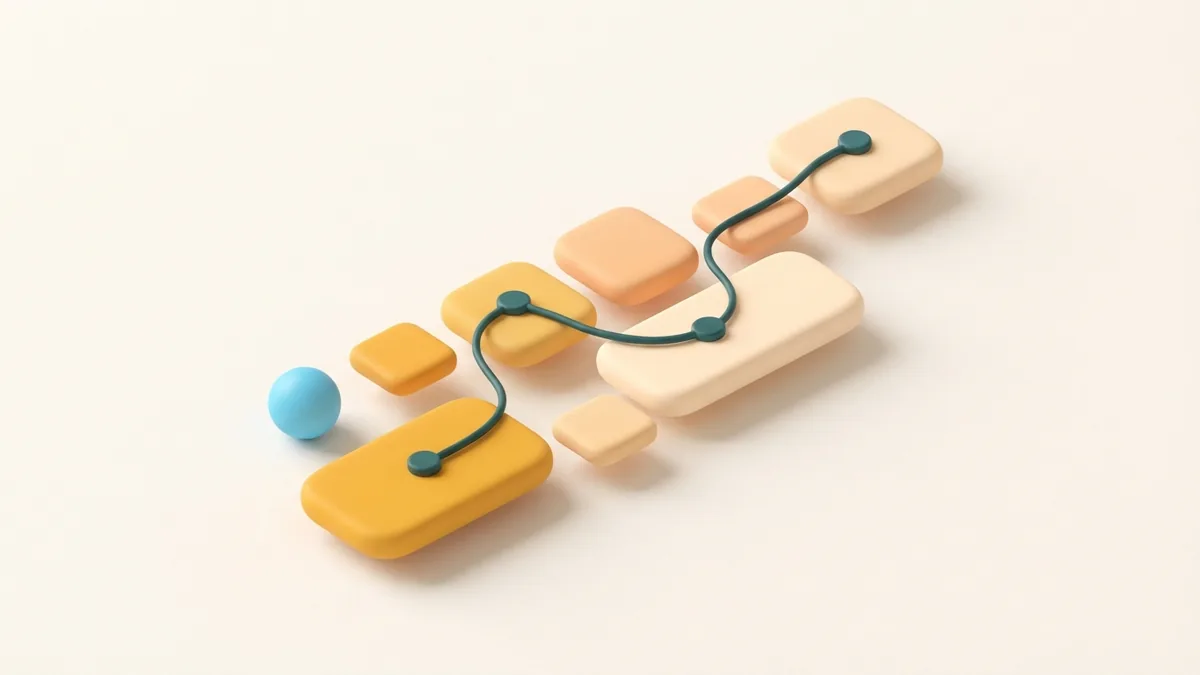
A quick fix order when your bio link fails
Start with the address itself, then check the page, redirects, and app behavior. This order saves time because it rules out the most common faults first. Make one change at a time and test again.
If the link still fails after these checks, try a direct URL without a shortener. Confirm that the destination is open to visitors and works on mobile. If the issue appears only inside Instagram, update the app and test again later.
- Copy the link and check for typos or spaces.
- Open the full URL on a phone.
- Confirm the page is live and accessible without a special sign-in.
- Remove unnecessary redirects or replace the short link.
- Add the corrected URL to your bio and tap it to confirm.
These checks answer the common question, “Why doesn’t the link in my bio work?” In most cases, a clean URL and a working mobile page solve it. Keep testing after changes so the link stays useful.
Step-by-step
- 01 Check the URL
Copy the link and look for typos, spaces, or missing HTTPS. Use the full address of the page you want visitors to open.
- 02 Test the destination
Open the exact URL on a phone. Confirm that the page loads, shows the right content, and does not ask for an unexpected sign-in.
- 03 Review redirects
Remove extra redirect steps or test the shortener from Instagram. Use the direct URL if the short link fails.
- 04 Update and retest
Add the corrected link to your bio, then tap it from the Instagram app. Repeat the check on another phone or network when possible.
Frequently asked questions
- Why doesn’t my link work in my Instagram bio?
- It may have a typo, lead to a broken page, or use a redirect that fails. Test the full URL on a phone, then try a direct link.
- Why does my Instagram bio link open the wrong page?
- A redirect or shortener may send visitors to an old destination. Check each step and replace it with the correct direct URL.
- How do I know if my bio link has expired?
- Open the exact link in a mobile browser. If it shows an error or an expired offer, replace it with a live page.
- Can link shorteners stop Instagram bio links from working?
- Yes, some short links can fail or trigger warnings. Test the short link in Instagram and use the full destination URL if it does not work.
- Why does my Instagram bio link work on a computer but not my phone?
- The page may not work well on mobile, or the app may handle its redirects differently. Test it in a phone browser and remove extra redirects.
Related reading
How Do You Create a Link in Your Instagram or TikTok Bio?
Add, test, and manage a bio link that gives followers a clear next step.
How Do You Remove a Facebook Link From Your Instagram Bio?
Remove, add, or troubleshoot a Facebook link on Instagram and TikTok.
How Do You Add a Google Maps Location to Your Instagram Bio?
Add a direct map link to your Instagram bio and help local visitors find you.